
Tasks
Certum Draft has a task system built for how legal work is handed around: you jot a task in one line, it files itself against the matter, it lands on the right person’s list, and whoever delegated it keeps a list of everything they’re waiting on. Tasks live in the firm’s shared Notion Tasks database. Notion is the record; every Certum surface reads and writes the same tasks your colleagues see there, and a change made in Notion or on another Mac shows up in Certum within a minute or two.
Capturing a task — ⌘⇧T
Section titled “Capturing a task — ⌘⇧T”Press ⌘⇧T anywhere in the app for the quick-entry window: one field, in the Things mould. Type naturally:
chase the bank #13628 @mel friTokens light up as the parser claims them, so you can see what Enter will create before you press it:
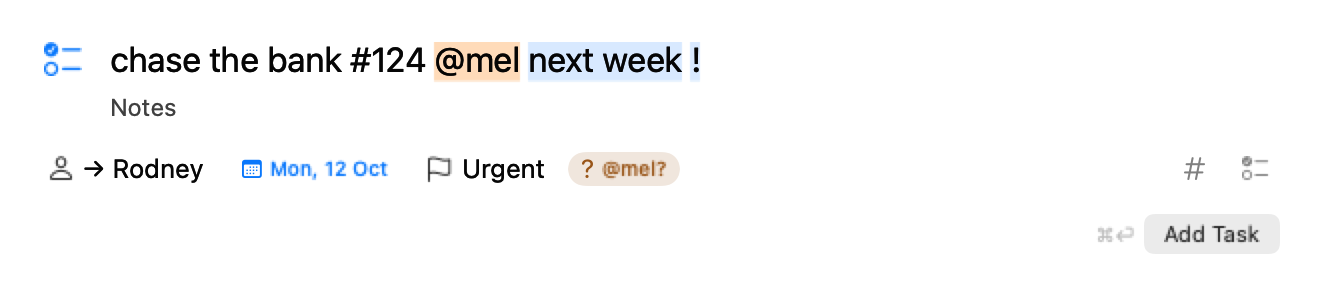
#— the matter. A name fragment (#rowley) or the last digits of a number: four or more digits that end a matter number file to it (#3628finds 013628). Fewer digits stay in the title as typed (“invoice #45”), and four or more that match no matter stay in the title with a warning chip, in case it’s a mistyped number.#officefiles the task to the Office. Inside a matter’s workspace you don’t need#at all; the open matter prefills, and the chip can be cleared.@— the assignee. You, unless you say otherwise;@melcompletes from the firm’s Notion people as you type.- Dates in plain words.
today,tomorrow,fri,next week,next month,in 3 days,in a fortnight,eom, or explicit dates:aug 30,30/8,30 aug 2027. Only a trailing date is read, and a “by” or “on” just before it goes with the date (“chase bank by fri” is titled “chase bank”). Words inside the title are never eaten, “tom” and “tod” are not dates, and a date in a past year or with a two-digit year stays in the title. A yearless date that has already passed means next year. !— urgent. A standalone!anywhere in the line sets Urgent priority.
Autocomplete pops as you type (↑/↓ to move, Tab or Enter to accept). The unset options (matter, due date, priority, checklist) wait as small icons on the trailing edge of the field, each with a hover tip that also teaches the typed shortcut; once set, an option steps forward as a labelled chip you can click to change from a menu, a people list, date presets or a calendar. Notes live directly under the title; a checklist (one item per line) sits behind the checklist icon. Both are written onto the task’s Notion page as real text and to-do blocks.
Enter captures instantly. The task is saved locally and the window closes; it rides your lists as a quiet row under Sending until Notion confirms it, usually a second or two. A capture that can’t reach Notion keeps retrying, survives a relaunch, and is tried again when the app becomes active; one Notion has refused outright shows in red under Not sent with Retry and Discard. A retry never makes a silent second copy.
The Tasks page — ⌘5
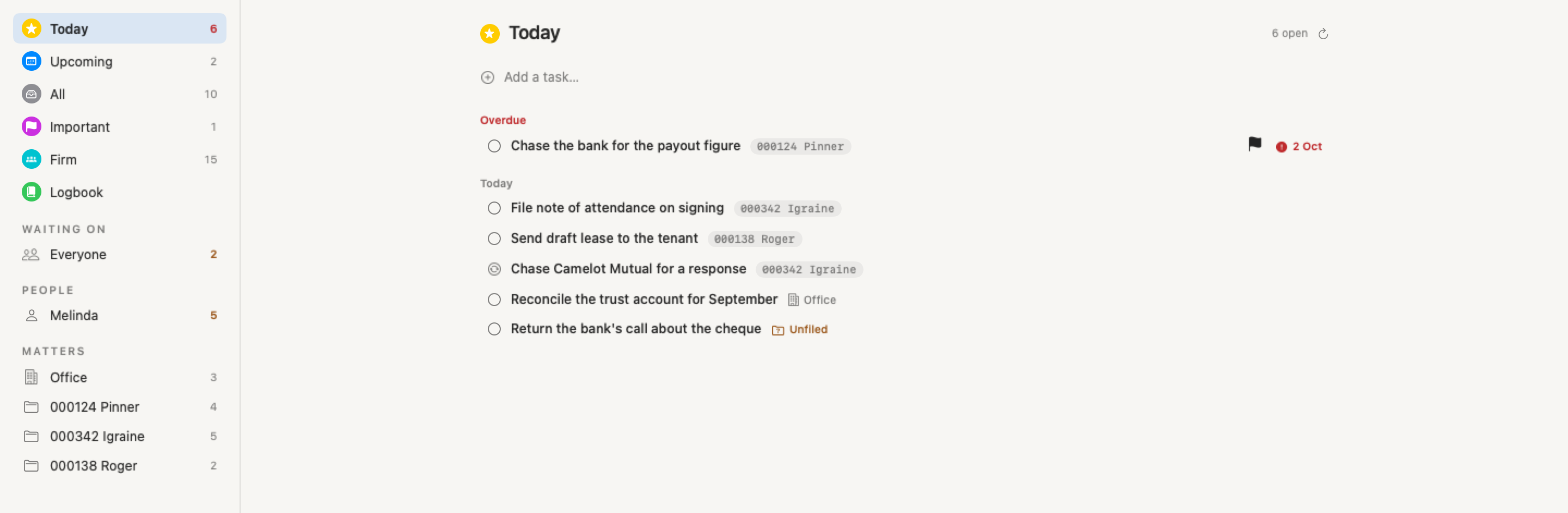
Section titled “The Tasks page — ⌘5”Tasks is a sidebar destination (⌘5) laid out like a task app: a source list on the left picks what the working list on the right shows. The page remembers where you were, and the sidebar’s Tasks row and the app’s Dock icon both carry your open count as a red badge.
The smart lists, each on its own coloured disc:
- Today — your tasks that are overdue or due today, with anything still Sending or Not sent above them.
- Upcoming — the rest of your dated tasks, grouped by due bucket; the first group is Next 7 days.
- All — everything of yours, including tasks with no due date.
- Important — your Urgent tasks, and the Urgent ones you’ve delegated.
- Firm — every open task in the practice, grouped by who holds it. A colleague’s task can be ticked or edited here like your own.
- Logbook — completions by day, firm-wide, with the time and who did it on each row. “Show earlier” widens the window from a week to 30, 90 and 365 days. Untick to reopen. A task ticked in Notion itself carries no completion stamp and shows its last edit with a ”~” instead.
Then the sections:
- Waiting on — Everyone is every open task you’ve assigned to someone else, the person most in need of a nudge first; an amber Unassigned row appears when a task has nobody on it.
- People — one row per colleague showing everything on their plate, from anyone, with their late count.
- Matters — Office first (when the firm has set an Office page), then every matter with an open task, whoever holds it. A matter’s row shows the matter type, address or estate, client names, its nearest hard date and Open Matter / Notion links under the title.
The composer sits at the top of the lists it makes sense on, as one quiet line reading Add a task…. Click it and it opens into the full composer; it folds back when focus leaves with nothing typed. A task added on Today is due today; one added on a matter’s or the Office list is filed there. The lists with no composer (Logbook, Waiting on, People) have a New Task button in the header instead.
Working the list
Section titled “Working the list”The page is keyboard-first: ↑/↓ move the selection, Enter expands the selected task, Space ticks it off, Esc clears the selection. ⌘-click toggles rows into a selection, ⇧-click and ⇧↑/↓ extend it, and the defers, Reschedule…, priority, reassign and Space act on the whole selection. A chase task in a multi-selection is left as it is (they’re ticked one at a time), and Cancel Task takes a single row.
The Task menu in the menu bar carries the keyboard defers, live while the Tasks page is showing: Due Today (⌘T), Due Tomorrow (⌘⌥T) and Reschedule… (⌘⇧S, the calendar popover). Typing in the composer never triggers them.
Right-click any task, here or on the dashboard’s Today card or a matter’s Tasks card, for the same menu: Complete (or Reopen); Due Today, Due Tomorrow, Due Friday, Due Next Week, Due Next Month; Pick a Date…; Clear Due Date; Priority; File to…; Assign to; Open Matter; Open in Notion; and Cancel Task (one task at a time) where the database allows it. “Next week” is next Monday and “next month” the 1st, the same reading the composer gives those words. The menu says how many tasks it will touch.
Every row carries live chips: click the due date for the calendar popover (presets, calendar, clear) and the flag for the priority menu. A repeat glyph beside a due date means the task repeats, with the rule on hover; In review shows as a glyph and a caption.
Ticking a task anywhere gives the same feedback: the checkmark springs, the row strikes through in place, and a moment’s pause is your undo window. Before anything is marked done Certum reads the task from Notion, so a task a colleague already finished is taken as done rather than completed twice, and its 9am reminder is cleared and the assignor told. When Notion refuses a write (a tick, a date, a reassignment, a rename, a re-file) the row goes back and the page says “Couldn’t complete …” with the reason and a Retry where the write can be replayed; the Today card shows the same as one line.
Every task opens in place
Section titled “Every task opens in place”Click a task once to highlight it and again (or double-click) to expand it into its detail card right in the list; click anywhere outside the card to close it. Completed rows and the dashboard’s cards open the same detail in a popover.
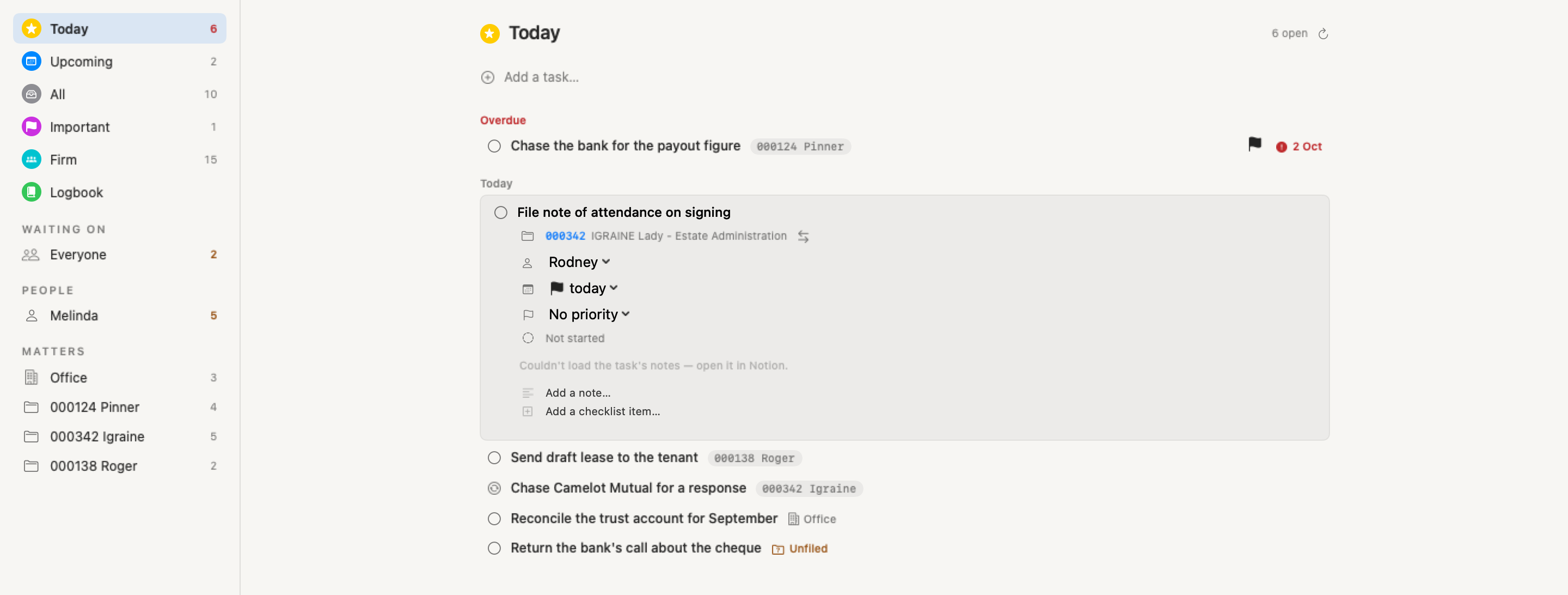
The card holds the full title (the cursor lands in it; type and the change saves when the card closes, Esc abandons it), the matter (click to open), due date (every preset and Pick a Date…), assignee, priority, status, and a Repeat row under Priority. Existing notes and checklist items are editable in place: click one to turn it into a field, Enter saves to Notion, clearing the text deletes the entry. Add a note… and Add a checklist item… append straight onto the task’s Notion page. Drop a file from Finder or a URL from your browser anywhere on the card and it becomes a clickable line in the notes.
Requested by … appears when the person who first asked for the task is no longer the one it’s assigned by, so the original asker stays visible after a task changes hands (the database needs a “Requested By” people property for this).
Delegation and the hand-back
Section titled “Delegation and the hand-back”Tasks you assign to someone else appear in their lists (in Today once due today or overdue) and on your Waiting on, and they get a macOS notification naming you (“Melinda assigned you a task”). A tap opens the task in Tasks › All.
When they tick it, you hear about it: Certum posts a comment on the task in Notion that mentions you, so Notion notifies you wherever you are, and the dashboard’s Today card shows “Melinda completed …” under Done for you for anything you delegated that was ticked in the last two days.
A task’s card offers two ways to hand it back, and which you see depends on who you are to it:
- Send back to name for checking — on a task someone delegated to you. The task goes back to them marked In review (when the database has that status option) and now sits on your Waiting on list. The sheet pauses on an editable title and an optional note, since the ask changes when a task changes hands (“prepare the workspace” becomes “check the workspace”); a rewritten title keeps the original as a note.
- Return to name for changes — on a task In review that you hold and someone else sent you. It goes back to that person as an ordinary open task, with your note, and they are notified as for any assignment.
A task sent back or returned notifies again, and the notice says so (“Melinda sent a task back to you”).
Cancel Task is in the card and the right-click menu once the Tasks database’s Status property has a “Cancelled” option in its Complete group. A cancelled task leaves the lists like a completed one, but nobody is told it was completed, it isn’t under Done for you, and the Logbook and the matter’s Tasks card mark it with a grey cross where it can be reopened.
Office tasks
Section titled “Office tasks”Tasks that belong to no matter have a place. One page in the Notion Matters database is set as the Office page in Settings → Notion, by pasting its link; Certum checks that the page is in the Matters database and isn’t a matter’s own page. Until it’s set, nothing Office appears.
A task is filed to Office only by choice: #office in the composer, the Office row in the # suggestions, or Office — no matter in the matter picker. Office tasks sit in Today, Upcoming, All, Important, Firm, Waiting on and People with everything else, labelled Office where the matter pill would be, and the Office list at the head of Matters shows every open Office task in the firm, grouped by who holds it. File to… in the row menu or the card moves a task between matters and Office.
A task with no matter at all shows Unfiled in amber where its matter pill would be, with File to… in its row menu, and the dashboard’s Today card counts them (“N unfiled”) so whoever sees it can file them.
Repeating tasks
Section titled “Repeating tasks”A task repeats when its Repeat row holds a rule Certum understands: weekly or fortnightly on a weekday, monthly on a day (the 29th to 31st clamp to the month’s end), monthly on the last business day, quarterly on a day in one set of months, or yearly on a date. The row offers Doesn’t Repeat and the rules that fit the task’s due date, named as they appear in Notion (“Monthly on the last business day”, “Quarterly on 28 Jan/Apr/Jul/Oct”). A task needs a due date and a matter or the Office to repeat.
The task is the series and stays open for as long as the duty exists. Ticking it does not mark it done: the period you ticked is recorded as a completed task in the Logbook and under Done for you, and the series rolls to its next date. The next date steps from the period’s own anchor, never from the day you ticked, so a late tick rolls to the next period (overdue if need be) and never skips one. When a ticked period was In review, the next goes back to the person who did the work.
Because a tick from outside the app can’t say which period it meant, a repeating task is not mirrored to Apple Reminders, the reminder banner’s Complete button opens it in Certum instead, and Siri answers “That task repeats, so tick it in Certum.” A Repeat value Certum doesn’t understand shows in amber with a note that ticking will complete the task outright. Cancel Task ends a series.
Repeating tasks need two properties on the Tasks database (a “Repeat” select and a “Repeat Period” date); Check Tasks Setup says when they’re missing.
Tasks that follow the work
Section titled “Tasks that follow the work”Three places in the app create tasks for you and keep them in step with the matter:
- Institution follow-ups. When a notice goes out to a bank or super fund on an estate matter, the Institutions pane offers once to track the follow-up as a task. Ticking a chase task doesn’t close it. On the Tasks page the tick opens a strip with Log Chase, Add Note…, They’ve Responded… and Stop Tracking; Log Chase (or a note) writes the chase to the institution’s contact log and re-dates the task to the next chase, and leaving the strip writes nothing. On the Today card and a matter’s Tasks card the tick opens the task’s card, which offers the same choices. The task completes itself when the response or the funds are recorded. See Institutions.
- Checklist steps. Right-click a pending step on a matter’s checklist and choose Delegate… to hand it to a colleague as a task; ticking either side ticks the other. See Editing Matter Details.
- A next step on a file note. The New File Note sheet has an optional Next step line (title, who it’s for, due date); the task is added to the matter when the note saves. See File Notes.
On the matter
Section titled “On the matter”Every linked matter has a Tasks card: this matter’s tasks, everyone’s, with the tick, the detail popover, the composer targeting that matter and an Open in Tasks link to the matter’s list on the Tasks page. The Matters table (⌘2) has a Tasks column showing each matter’s open tasks across the firm, overdue ones in red, so the files with work outstanding are visible without opening them; a No next step checkbox lists the active matters with no open task and no critical date.
The ⌘K palette finds open tasks too: yours, the ones you’re waiting on and the rest of the firm’s, by title, matter, Office or Unfiled, or who holds them. A Tasks chip searches tasks alone, soonest due first when nothing is typed. Choosing one opens it on the Tasks page, selected and expanded.
Notifications and reminders
Section titled “Notifications and reminders”- New assignments — a macOS notification naming who assigned it; several at once collapse to a summary. A tap opens the task in Tasks › All.
- Due dates — a 9am local notification on the day a task falls due, with Complete, Due Tomorrow and Due Next Week buttons. A tap on the banner opens the task on the Tasks page.
- Overdue — one 9am “Tasks overdue” notification on the first business day after one of your tasks passes its due date unfinished, and each Monday while anything is overdue. A tap opens Today.
- Completions — when someone ticks a task you assigned them, a notification names them and the task, and a tap opens it in the Logbook.
The completion notice to an assignor is a comment on the task’s Notion page, so it needs the Notion integration’s “Insert comments” capability; Settings → Notion says when those notices aren’t getting through.
Capture from anywhere — ⌃⇧Space
Section titled “Capture from anywhere — ⌃⇧Space”Press ⌃⇧Space in any app — Mail, Word, a browser — and the same one-line composer appears as a small panel over what you’re reading. Type the task, press Enter, and the panel goes; the app you were in never lost focus, so there is nothing to click back into. Escape, or the chord again, hides it.
Over Mail the task’s note starts with the selected message’s subject and a link back to it; over Safari or Chrome, the page’s title and address. The first time over each app macOS asks once whether Certum may read it; a no just means no note. The panel doesn’t assume the matter open in Certum — use # or the chip to file it.
The chord is on by default on every Mac. Settings → Notion → Tasks has the switch, and says if another app already holds the chord (while Certum runs, another app that uses it won’t get it). Horace’s menu-bar menu offers New Task… for the same panel.
Siri and Shortcuts
Section titled “Siri and Shortcuts”Three App Shortcuts: New Task (title, a matter or the Office, an optional due preset; queued like ⌘⇧T and assigned to you), Complete Task and Snooze Task (by preset). Siri and Shortcuts find a matter by number or the first client’s surname. The replies name only the matter number or “Office”; nothing from a task is read back aloud, and task titles stay out of the system Spotlight index.
Your tasks on your iPhone
Section titled “Your tasks on your iPhone”Switch on the mirror in Settings → Reminders and your open tasks appear in a “Certum” list in Apple Reminders (title, due date, priority, the matter’s short label or “Office”), carried to your iPhone and Watch by iCloud. Tick a reminder on any device and the real task completes in Notion; the reminder then tidies itself away. A tick on a chase task logs a chase, and repeating tasks are not mirrored.
Tasks need two things, both on Settings → Notion: the Tasks Database ID (the firm’s shared Tasks database; it travels in the Setup Pack, so a provisioned Mac arrives connected) and “I am”, which workspace person this Mac’s ticks and captures belong to. Identity is deliberately per-Mac and never travels in the pack; if it’s unset, the dashboard’s Today card asks “Who are you?”. Check Tasks Setup validates the database and access, and says whether repeating tasks are available and whether completion notices are getting through. The Office page is set on the same pane.
Related
Section titled “Related”- Dashboard — the Today card and its counts
- Institutions — follow-up tasks and the chase strip
- Settings — the Notion pane’s Tasks setup and the Reminders pane’s mirror
- Notion Integration — the Tasks database and its optional properties
- Keyboard Shortcuts — ⌘⇧T, ⌃⇧Space, ⌘5, the Task menu and the Tasks-page keys