
Generating Documents
Once you have a matter set up with client details, you can generate documents. Certum Draft fills in the placeholders automatically — no more copy-paste.
Two Ways to Generate
Section titled “Two Ways to Generate”The recommended workflow when you have a matter open:
- Open the matter in the Matter Workspace
- Click New Document in the toolbar (or press ⌘ + Shift + D). The chevron beside the button also offers File Note, New Task and an Add to Matter section (Add Client, and Add Institution on an estate). In a narrow window the other toolbar verbs overflow first; New Document stays.
- Select templates and generate
Quick access without opening the app:
- Right-click a matter folder in Finder
- Select Services → New Certum Document
- Select templates and generate
The Document Wizard
Section titled “The Document Wizard”Step 1: Choose Templates
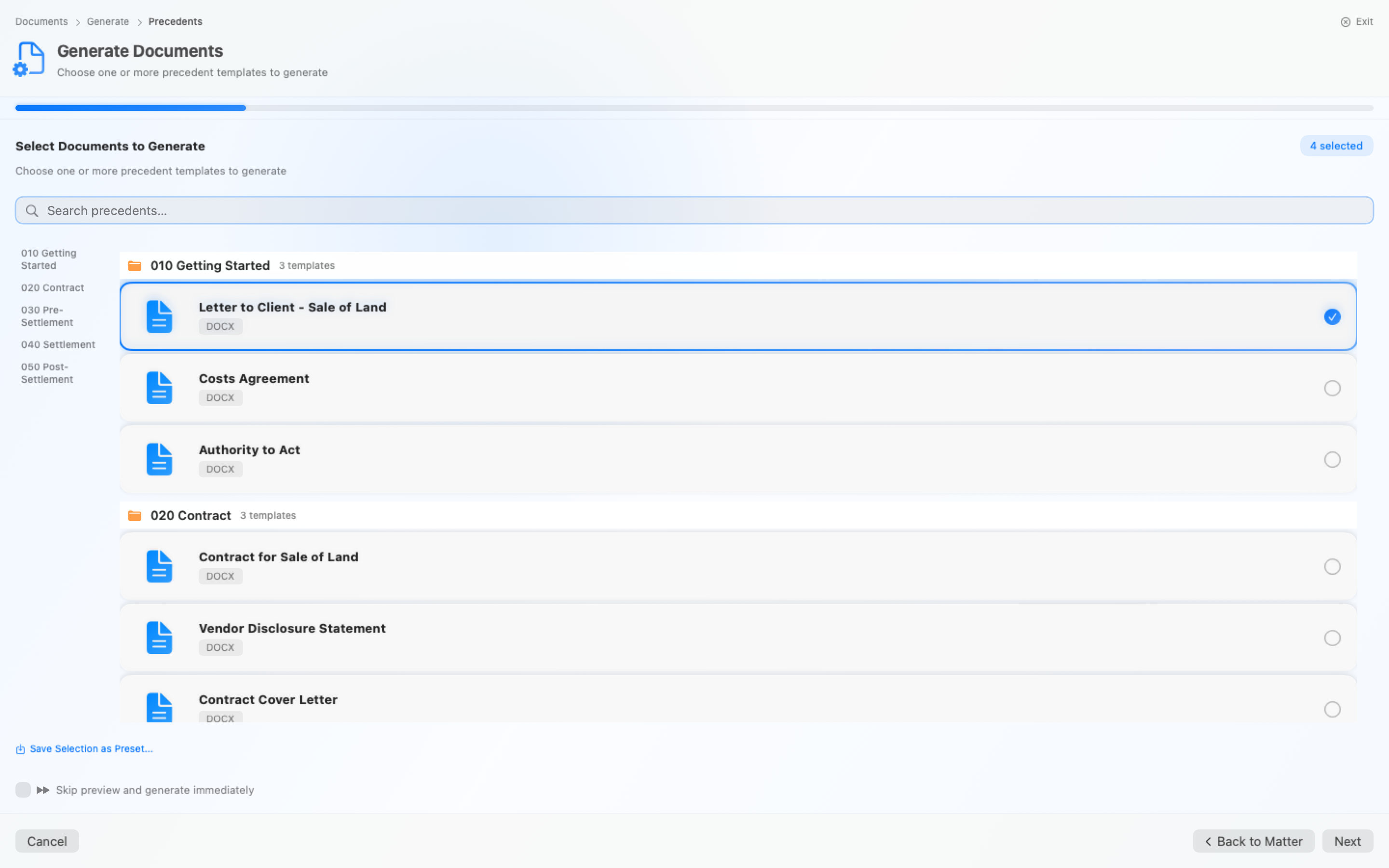
Section titled “Step 1: Choose Templates”The template selection screen shows all available document templates for your matter type.
Template Organisation:
- Templates are organised in numbered folders (e.g., “010 Getting Started”, “020 Searches”)
- Click a folder to expand it and see the documents inside
- Use the search field to filter templates by name
Selecting Templates:
- Click a template to select it
- Click again to deselect
- Use ⌘ + click to select multiple templates
- Selected templates show a checkmark
Step 2: Review Missing Fields
Section titled “Step 2: Review Missing Fields”Before generating, Certum Draft scans the selected templates for any placeholders that don’t have a value in the matter — including placeholders inside text boxes, nested tables and content controls, which Word hides well. This reflects Certum Draft’s “empty is better than bogus” policy — required fields are not enforced at matter creation, so the missing-fields step is where the gaps surface.
Field labels in the wizard:
| Label | Meaning |
|---|---|
| (no label) | A registered field from the template — fill in or leave blank |
| Optional | Marked optional in the template — can be left blank without prompting |
| One-off | The field isn’t part of the matter form, so what you type is used for this document run only — if it should be remembered on the matter, ask whoever maintains your templates to add it |
Any field you leave blank renders as [MISSING: field_name] in the generated document (highlighted in Word and Excel alike), so it’s obvious what still needs attention when you review the file.
Step 3: Preview & Inline Editing
Section titled “Step 3: Preview & Inline Editing”The preview step shows each selected document with its placeholders and the values Certum Draft will substitute in. Missing fields are highlighted, and the counts update live as you fill fields in — the same field appearing in two documents is filled once, for both.
Editing in the preview: Click any field to fill it in directly, with the right control for the job — dates use the calendar chip, yes/no fields offer Yes / No / Not set, long text gets a multi-line box, and obvious format slips (like an email without an @) are flagged as you type. What you type goes into the open matter’s form, exactly as typing on the Details tab would, and is saved with it; clearing a field back to empty works too. With no workspace open, the wizard merges the values into the matter file and says so if that merge can’t be saved.
Field context: Each field shows its block name and label (e.g., “Executor 1 > Full Name (CAPS)”) so you know what the data relates to.
Skip preview option: Enable “Skip preview and generate immediately” on the precedents step to bypass the preview and go straight to generation.
Step 4: Generate
Section titled “Step 4: Generate”Click Generate Documents to render the files.
What Happens:
- The whole set is rendered in one pass by the document engine — a progress line shows “Rendering X (3 of 12)…” so you can see exactly where the batch is up to
- All placeholders are replaced with your matter data
- Documents are saved to the matter’s Working Documents folder
Changed your mind? A Cancel button is available throughout the render. Anything already rendered stays in Working Documents — the wizard tells you “Cancelled — N documents already rendered were kept” and returns to the selection step.
Step 5: Completion
Section titled “Step 5: Completion”The completion screen is honest about how the batch went:
- All clean — “Documents generated successfully. N documents created.”
- Needs review — “Documents generated — N need review”: the documents rendered, but the post-generation check found unfilled
[MISSING:]markers,[REVIEW REQUIRED:]notes or leftover template tags (this check covers Excel spreadsheets as well as Word documents). Flagged documents carry an amber “needs review” marker instead of a success tick and say how many items there are to check. Blank fields show their label, never a dot-key, and when the matter is open each one offers Go to Field. - Fallback mode — a red “Rendered in fallback mode … Do not send” warning, listed first. The precedent itself has a syntax error, so the engine rendered it with every conditional clause left in and the broken tags shown as visible
[TEMPLATE ERROR:]markers. The document is for diagnosing the template, not for sending; tell whoever maintains the precedents. - Partial failure — “Completed with errors. N succeeded, M failed.” Each failure shows what went wrong in plain language, and a Retry Failed (N) button re-renders just the failures — no need to re-pick them from the template list. (Failures from another matter type’s pack aren’t retryable this way — re-pick those from the cross-pack browser.)
Actions:
- Open Document — Open the first generated document
- Show in Finder — Reveal the documents in Finder
- Generate More — Generate additional documents for the same matter
Institution Letters
Section titled “Institution Letters”For estate matters with institutions, generate notification letters from the Institutions section:
- Click “Generate Notice of Death” for individual institutions
- Or use “Generate All Grant Letters” when the grant has been recorded
- Letters are named with the institution (e.g., “Notice of Death - Commonwealth Bank.docx”)
- Templates are resolved per institution type (bank, super fund, aged care, etc.)
Cross-Pack Templates
Section titled “Cross-Pack Templates”You can use templates from a different matter type:
- In the template selection, expand Templates from other packs
- Browse templates from other matter types
- Select the templates you need
- Fill in any ad-hoc fields specific to that pack
- Generate as normal
Generated Document Location
Section titled “Generated Document Location”Documents are saved to the matter’s Working Documents folder (or another location based on template settings):
000108 - SCHRUTE Dwight - Estate of Mose Schrute/└── Working Documents/ └── 010 Getting Started/ └── Letter to Client - 2026-02-05.docxThe subfolder structure mirrors the template organisation.
Managing Generated Documents
Section titled “Managing Generated Documents”In the Matter Workspace
Section titled “In the Matter Workspace”The Documents section of the Matter Workspace shows all generated documents:
- Search — Filter documents by name
- Sort — By name, date created, or file type
- QuickLook Preview — Click the eye icon to preview without opening
- Open — Click the document row to open in the default application
- Drag and Drop — Drag documents to other apps or Finder locations
Batch Operations
Section titled “Batch Operations”To work with multiple documents:
- Click the selection toggle in the Documents toolbar
- Check the documents you want
- Use batch actions:
- Open All — Open selected documents
- Email All — Attach to an email
- Show in Finder — Reveal in Finder
QuickLook Preview
Section titled “QuickLook Preview”Preview documents without leaving Certum Draft:
- Find the document in the Documents section
- Click the eye icon on the row
- A preview sheet appears
- Close to continue working
Works with Word documents, PDFs, images, and most common file types.
Regenerating Documents
Section titled “Regenerating Documents”The fast path: in the matter’s Documents section, right-click the rendered document and choose Regenerate…. The document wizard opens with the template that produced it already selected — just click through.
The long way still works too:
- Update the matter details in the Details section
- Click New Document in the toolbar
- Select the same template
- Generate
Field Types
Section titled “Field Types”Fields are formatted based on their type:
| Type | Format | Example |
|---|---|---|
| Text | Plain text | John Smith |
| Date | DD/MM/YYYY | 15/01/2026 |
| Currency | $X,XXX.XX | $150,000.00 |
| Phone | Phone number | 0412 345 678 |
| Email address | [email protected] | |
| Bool | Yes/No | Yes |
PDF Documents
Section titled “PDF Documents”PDF files in precedent folders are copied as-is to the output directory. They’re not processed for placeholders — useful for including standard forms or reference documents.
Troubleshooting
Section titled “Troubleshooting””No templates found”
Section titled “”No templates found””This means the template folder is empty or not configured. Check:
- The Templates folder location in Settings → Paths
- That templates are properly set up for your matter type
- That the template folder contains a
matter.jsonfile
”Missing required field”
Section titled “”Missing required field””Fields the template marks required are flagged in red in the wizard, but generation never actually blocks on them — an empty field renders as a [MISSING:] marker. If you don’t have the information:
- Enter a placeholder like “TBC” or “To be confirmed”
- Update the matter details later and regenerate
Document shows [MISSING: field_name]
Section titled “Document shows [MISSING: field_name]”This means a placeholder in the template didn’t have a matching value. Word documents show the marker in orange; Excel spreadsheets show it highlighted in yellow (a blank cell never silently stands in for a missing figure). Either:
- The field wasn’t entered when creating the matter
- The template uses a field that isn’t configured
Check the matter details or contact your administrator. Documents containing markers are flagged “needs review” on the completion screen, so they’re easy to catch before anything goes out.
”Rendered in fallback mode, do not send”
Section titled “”Rendered in fallback mode, do not send””The precedent could not be parsed — a stray % } or an unknown filter in the template, not anything on the matter. The document is produced so the template author can see where the [TEMPLATE ERROR:] markers land, and the same red warning appears on institution letters, settlement sets and wills rendered from that precedent. Fix the template and regenerate; the template validation that runs at startup reports a precedent that fails to parse, an unknown filter, or a corrupt file.
”Unsupported template format”
Section titled “”Unsupported template format””Certum Draft supports:
- Word documents (.docx)
- Excel spreadsheets (.xlsx)
- PDF files (copied as-is)
Other formats are not supported for template processing.
Generated document in wrong location
Section titled “Generated document in wrong location”Check the template’s folder configuration in matter.json. The precedents_path setting determines where generated documents are saved.