
Potential New Matters
An enquiry — a call, an email, a repeat client mentioning their mother wants a Will — isn’t a matter yet, but if it isn’t tracked somewhere it falls through the cracks.
A Potential New Matter (PNM) is a lightweight record of an enquiry, captured before you’ve decided whether to take it on. Certum Draft calls these Leads. They live in Notion, they get a folder on disk, and they convert to full matters when the work is confirmed.
This page walks through the whole lifecycle: capturing a Lead, working with the Lead Inspector, syncing to Notion, triaging legacy folders, converting to a Matter, and declining the ones you won’t take.
Capturing a new Lead
Section titled “Capturing a new Lead”The fastest path is ⌘⇧P from anywhere in the app — also New Lead in the chevron menu beside the dashboard’s New Matter button, File → New Lead…, or “New Lead” in the command palette (⌘K). New Lead opens as a small window of its own, floating over Certum’s windows rather than locking them: while a caller is on the phone you can still use ⌘K or the Matters table to see whether they’re a client, and the half-filled form stays up. It hides while another app is in front and comes back with Certum. There is one such window; asking for New Lead again brings it forward.
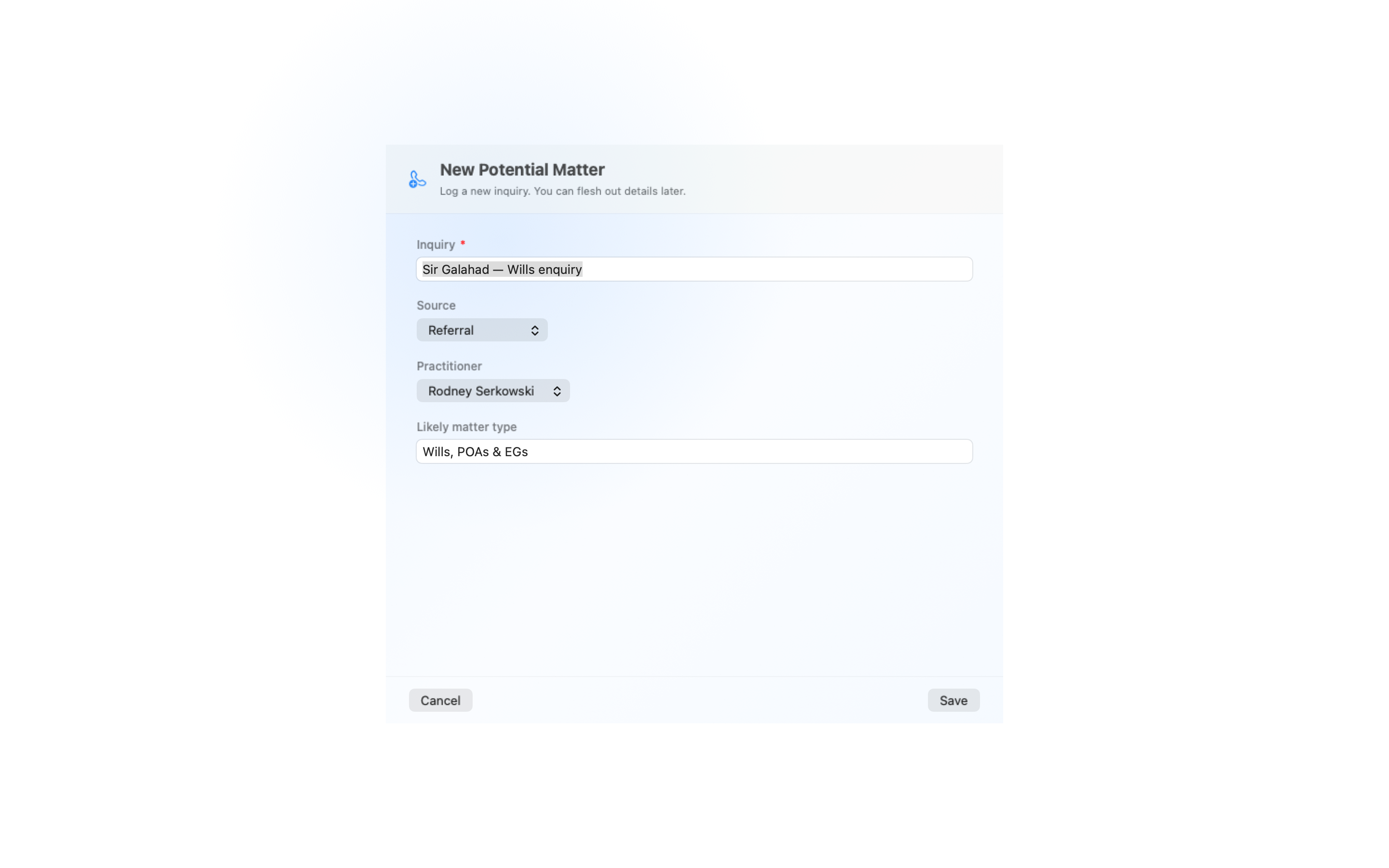
The form is deliberately small — you should be able to capture a caller while they’re still on the phone.
-
Inquiry (required). The shortest sensible description: who and what. “Cleese Will inquiry”, “Praline conveyancing question”, “Anchovy estate — sister called”. This text becomes the folder name on disk and the title of the Notion record.
-
Source. How they found you. The picker has five options — Referral, Repeat client, New client, Google or web, Other — matching the categories the firm tracks for marketing attribution.
-
Practitioner. Who’s got carriage. The picker lists the firm’s principals and defaults to Unassigned — carriage gets assigned deliberately, not silently given to the first name in the list.
-
Linked client (optional). If the enquiry is from someone already in your client register, Link to Client… ties the Lead to their record.
-
Caller (optional). The person who actually rang or emailed — name, phone, email — which may not be the eventual client. Stored as raw text; the formal client record comes later, at conversion.
-
Likely matter type (optional). A free-text guess — “Wills”, “Conveyancing”, “Lease dispute”. You’re not committing to a template yet; this just makes triage easier later. Leave it blank if you’re not sure.
If the caller’s name or phone matches a Lead you already have, an inline hint appears — “A lead “Smith probate” already exists.” — with an Open it button that takes you to the existing Lead. Save stays enabled: a second enquiry from the same caller can be legitimate.
Click Save. Three things happen, in order:
- A new Lead row is created in your Notion Leads database, with Stage set to new and Next action by defaulted to a sensible follow-up date.
- A folder is created in your PNM root on disk, named with a date prefix and the inquiry slug.
- A small anchor file is written into the folder, binding it to the Notion record.
The Lead Inspector
Section titled “The Lead Inspector”The Lead Inspector is the working surface for a single Lead. Open it from the dashboard’s Open Leads section — click any lead row — or double-click a row in the Leads list (⌘3). A lead opens in its own window, titled with the lead’s name, as a matter does: the dashboard and the Matters table stay usable while you triage, two leads can sit side by side, and opening the same lead again brings its window forward. Done (or Escape) closes it.
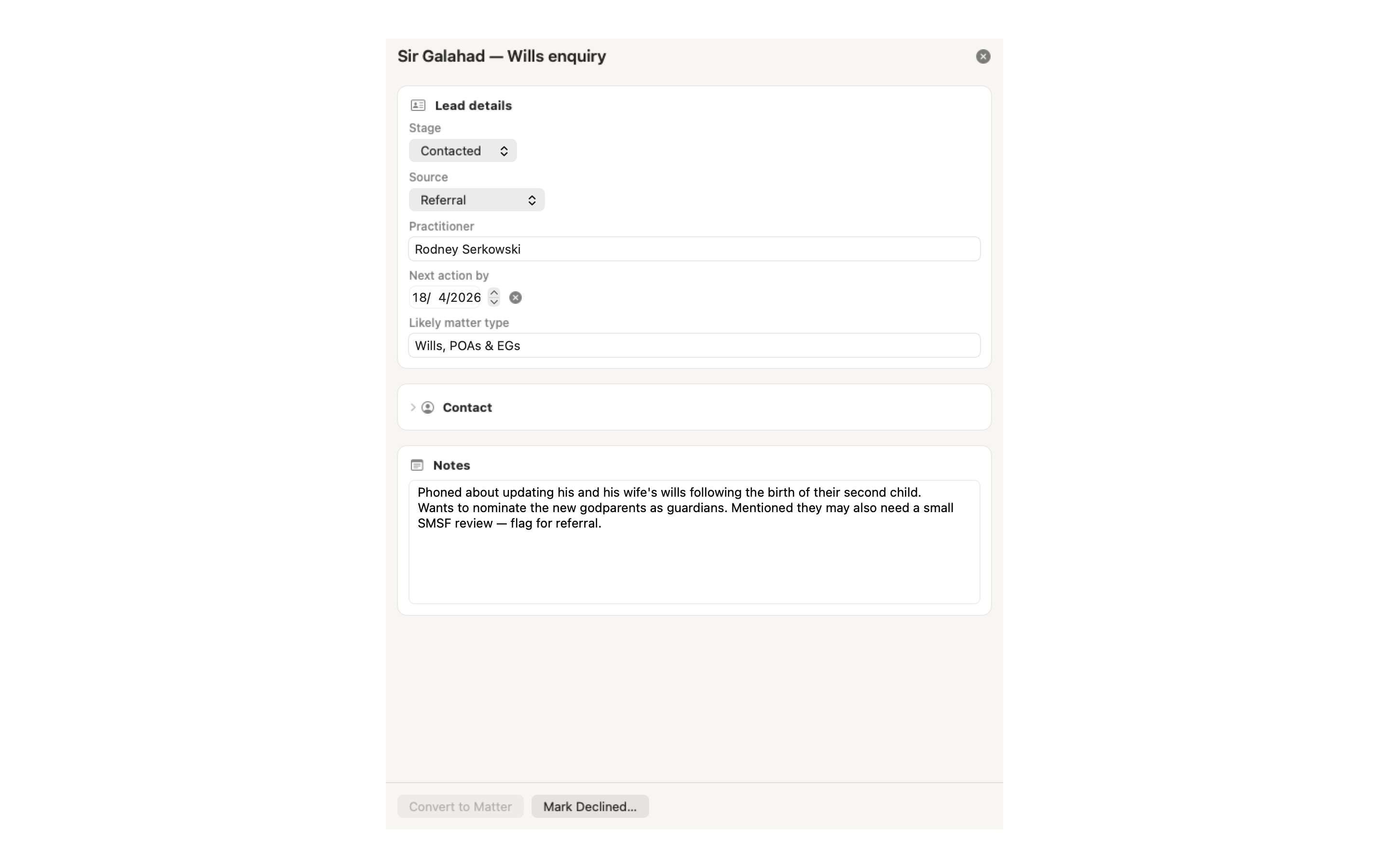
The Inspector lays out in sections, top to bottom:
Lead details
Section titled “Lead details”The first block holds the fields that drive a Lead’s lifecycle:
- Stage —
new→contacted→quoted→instructed→declined. Move the lead forward as work progresses. - Source — what you set in the wizard, editable here if you got it wrong.
- Practitioner — who’s got carriage, or Unassigned.
- Next action by — a follow-up date. The default is seeded from Stage when the lead is created; bump it forward each time you act.
- Likely matter type — same field as the wizard, still freely editable.
If the Lead is in Notion but has no folder on disk yet, the Inspector says so and offers to Create Folder, Attach Existing… (a folder you’ve already organised), or Open in Notion.
Edits sync to Notion automatically with a 1.5-second debounce — keep typing and only the final value is written. The Inspector shows a small “synced” / “pending” / “sync failed” indicator so you know where you stand.
Contact
Section titled “Contact”The caller’s details — the person who actually rang or emailed (which may not be the eventual client) — plus the linked client if there is one. Link to Client… ties the Lead to an existing client record; Change… and Unlink manage it afterwards.
Caller details are deliberately stored as raw, unparsed text. There’s no auto-split into surname and given names — that decision gets made later, when the lead converts to a matter and you formally create a Client record.
Follow-up log
Section titled “Follow-up log”A dated timeline of every touch with the Lead: what they said on the phone, what you quoted, why you’re waiting. Pick a type — Note, Call or Email — type the entry and hit Log; it lands at the top of the timeline with today’s date. Edit log… swaps to the raw text for corrections, and the log syncs to Notion on the same 1.5-second debounce as the structured fields. Close with an entry still typed and Certum Draft asks before discarding it.
The action row
Section titled “The action row”At the bottom of the Inspector sits the action row, which changes shape depending on the Lead’s state:
- Convert to Matter — when the lead is active and unconverted. If it’s greyed out, the reason is written next to it (“Attach or create a folder first”, “Set a Matters Root in Settings → Paths first”).
- Open Linked Matter → — replaces Convert once a lead has been converted. Opens the resulting matter beside the lead, which stays open.
- Mark Declined… — opens the decline-reason picker (see Marking a Lead as Declined below).
- Resurrect — replaces Mark Declined when the lead is already in the
declinedstage. Reopens it for further work. - Abandon Conversion… — only appears when a previous Convert attempt left the lead in a broken state. See Converting a Lead to a Matter below.
Notion sync
Section titled “Notion sync”PNM is Notion-first. When you create a Lead, the canonical record lives in your Notion Leads database; the folder on disk is just a working space, and the anchor file is a thin link binding the two.
What syncs, and when
Section titled “What syncs, and when”| Action | Sync timing |
|---|---|
| Create Lead | Immediate — happens before the folder is written |
| Edit any Inspector field | Debounced 1.5s — only the final value reaches Notion |
| Stage change | Same debounce as field edits |
| Convert to Matter | Multi-step (see below); each step writes Notion in turn |
| Decline | Immediate |
Every edit reaches Notion — last write wins. If a sync fails, the Inspector says so plainly: a “Still couldn’t sync — check your connection and try again.” banner with a Retry button, and the failure is remembered, so the banner is still there next time you open the Lead. A successful retry clears it for good.
Default watchers
Section titled “Default watchers”Notion’s “Watchers” people property triggers a notification whenever a row is updated. The firm can configure a default list of watchers — every new Lead the wizard creates gets the same people tagged automatically.
-
Open Settings → Notion → Default watchers on new PNM Leads.
-
Tick the firm members you want notified by default. Bots and integration accounts are filtered out automatically.
-
Close Settings. The next Lead you create will tag those users.
If a watcher is removed from your Notion workspace, the next Lead create silently drops them and shows a one-shot banner in Settings so you can re-pick someone else. See Notion Integration for the full setup.
Triaging orphan lead folders
Section titled “Triaging orphan lead folders”Most firms come to Certum Draft with a pre-existing pile of “enquiry” folders on Dropbox — every place a partner stashed a call note for the last five years. None of those have Notion Lead records, because Notion Leads didn’t exist when they were created.
The Triage view is how you sort them out.
Getting there
Section titled “Getting there”When Certum Draft detects lead-shaped folders in your PNM root that aren’t linked to a Lead, an “N folders without a lead” pill appears at the bottom of the dashboard’s Open Leads section. Click it to open the reconciliation view.
The reconciliation view
Section titled “The reconciliation view”The view lists every orphan folder, one per row, with a date prefix and the modification time. Each row gives you three actions:
- Create Lead — opens the New Lead window pre-filled with the folder name as the Inquiry. On save, a Notion Lead is created and the anchor is written into the existing folder (the folder itself is preserved, not recreated).
- Ignore — marks the folder as not-a-lead so it stops appearing in the orphan list. Use this for folders that aren’t enquiries at all (admin notes, drafts, anything not lead-shaped). Ignore is undoable: the row stays on screen as “Ignored — Undo” until you close the view, so a misclick costs nothing.
- Open in Finder — the small folder icon opens the folder in Finder so you can look at what’s actually in there before deciding.
For obviously-dead leads — old folders for inquiries that never went anywhere — tick the row checkbox on the left and use the Mark Declined… button in the footer to bulk-process them (with a confirmation first). The bulk action creates Lead rows in Notion with Stage set to declined, plus the decline reason you pick, then marks the folders ignored so they don’t reappear.
Converting a Lead to a Matter
Section titled “Converting a Lead to a Matter”When a Lead becomes real work, hit Convert to Matter in the Inspector. This kicks off a multi-step process: a Lead in Notion needs to graduate to a full matter (folder, metadata, template, possibly a Notion Matter record) while keeping the Lead row intact and linked.
What gets pre-filled
Section titled “What gets pre-filled”Convert opens the standard New Matter wizard with a few fields seeded from the Lead:
- Matter type — from the Lead’s Likely matter type
- Person acting — from the Lead’s Practitioner
- Matter name — from the Lead’s name (used as the folder-label hint)
The caller’s name, phone and email are not auto-filled into client fields — Certum Draft never guesses how to split a free-text caller name into surname and given names. You’ll be prompted to pick or create a Client explicitly during the wizard, as you would for any new matter.
The conversion, step by step
Section titled “The conversion, step by step”Behind the wizard sits a safety journal: the conversion is recorded to disk before each non-reversible step, so if anything fails midway — power loss, network outage, app crash — the next launch can detect the half-finished attempt and either complete it or roll back cleanly.
In practice, this is invisible. The flow is:
-
Begin — Certum Draft marks the conversion attempt in progress in the Lead’s folder.
-
Wizard — the New Matter wizard runs as normal. You pick or create the Client, confirm the matter details, and submit.
-
Matter created — the matter folder is built, metadata is written, and the Notion Matter record is created.
-
Lead linked — the Notion Lead is updated: Stage →
instructed, the Linked matter filled in, Next action by cleared. -
Note appended — a “Converted to matter 2026-00123 on 28 May 2026” note is added to the Lead’s Notion notes (checked first, so it can never appear twice).
-
Done — the Lead now shows Open Linked Matter → instead of Convert to Matter.
If something goes wrong
Section titled “If something goes wrong”If the conversion fails partway — typically a network drop between steps — the Lead Inspector shows a repair banner the next time you open it. The fix is one of two buttons:
- Repair — the Inspector retries the failed step. Each step is safe to retry.
- Abandon Conversion… — back out of the attempt entirely. Useful if you’ve decided not to proceed, or if the matter was created manually outside the app.
Marking a Lead as Declined
Section titled “Marking a Lead as Declined”Not every lead becomes work. To decline, click Mark Declined… on the Inspector. A popover appears with a reason picker:
- No response — they didn’t get back to you.
- Client declined — they told you no.
- Conflict — you can’t act because of a conflict of interest.
- Out of scope — it’s not work you do.
- Referred elsewhere — you sent them to someone else.
- Other — anything else.
Pick a reason, confirm. The Notion Lead is updated: Stage → declined, Decline reason set, Next action by cleared.
The folder on disk stays exactly where it is — declined leads can resurface (people change their mind), and the working notes are still useful context. To bring a declined Lead back to life, open the Inspector and click Resurrect: Stage goes back to new, Decline reason is cleared, and the Lead reappears in the Open Leads tile.
Open Leads and the Leads list
Section titled “Open Leads and the Leads list”Open Leads is a section of the dashboard, under the Today and Recent panels. It shows your most pressing active leads (anything not declined or already converted), with idle-badges on the rows that haven’t been touched recently — leads needing attention sort to the top. Click any row to open the Inspector.
The “N need attention” button appears when follow-ups are overdue. The orphan pill at the bottom of the section opens the reconciliation view. And See all leads opens the full Leads destination in the sidebar (⌘3): every lead, open or closed, in a proper table — search by name, caller, phone or matter type, filter by practitioner, double-click to inspect.
For the dashboard’s full anatomy and how PNM fits alongside Recent Matters and firm activity, see the Dashboard page.
Settings (where to configure)
Section titled “Settings (where to configure)”PNM has two configuration touchpoints, both in Settings:
- Notion → Leads database — the database Certum Draft writes Leads into. Set this during first-time Notion setup; if you ever change databases, both new and existing Leads need to migrate together (the app doesn’t move Leads between databases automatically).
- Notion → Default watchers on new PNM Leads — the firm members tagged on every new Lead. See Default watchers above.
For the PNM root folder location and other paths, see Settings.
Related
Section titled “Related”- Dashboard — where Open Leads, the orphan pill and the New Lead button live
- Creating a New Matter — the wizard the Convert flow drives
- Notion Integration — Leads database setup, watchers, authentication
- Settings — folder locations and other configuration