
Matter Workspace
The Matter Workspace is where an open matter lives: its details, documents, key dates, settlement figures or institutions, invoices and notes, in one window. This page covers the workspace itself; Settlement, Institutions, Compliance, Invoices, File Notes and Document Intake each have their own page.
Opening a Matter
Section titled “Opening a Matter”There are several ways to open a matter in the workspace:
- From Recent Matters: Click a matter in the Recent list on the dashboard
- From the Matters list: The sidebar’s Matters destination (⌘2) lists every matter — Return opens the selected one
- From the command palette: Press ⌘ + K and type a number, client or address (⌘Return opens in a new window)
- From Open Recent: File ▸ Open Recent opens by matter number, so a matter whose folder was renamed since you last had it open still opens
- From Finder: Double-click a
.certumfile in the matter folder - Via URL: Use a
certum://open?matter=000108link (e.g., from Notion) - After Creation: Click “Open Matter” on the matter creation completion screen
The Workspace Layout
Section titled “The Workspace Layout”The Matter Workspace sidebar lists the sections available for the matter — always Overview, Details, Documents and Invoices, plus Settlement Ledger (for conveyancing) and Institutions and Estate (for deceased estates) when the template enables them. The matter’s name is the window title; hover the matter number beside it to copy it.
Overview
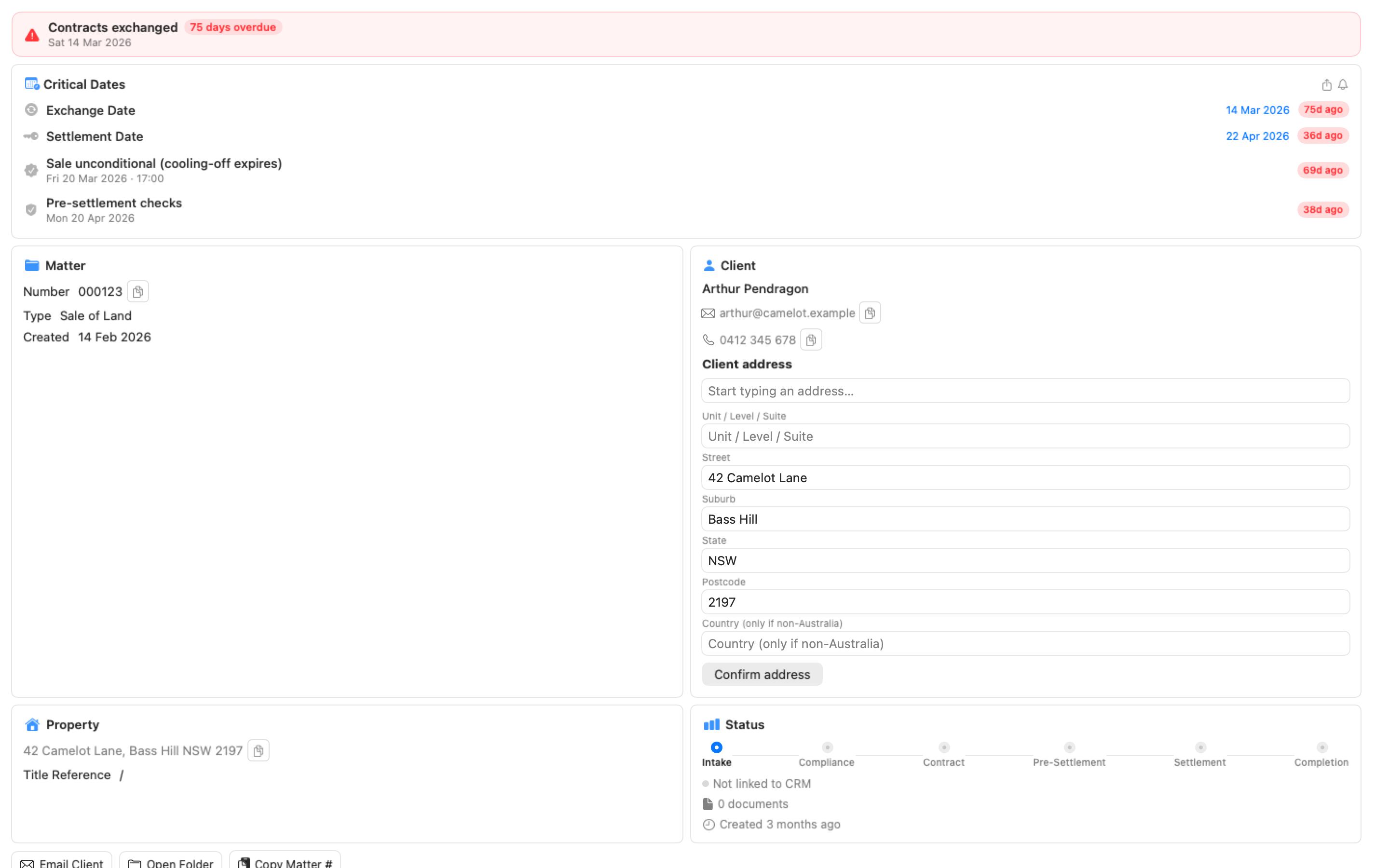
Section titled “Overview”The Overview is one fact sheet, section by section (Vendor, Settlement, Purchaser, Property…) as the matter type’s pack lays them out. Sections with nothing recorded yet are named once at the foot of the sheet (“Nothing recorded yet for Agent and Property.”) with an Add… link that takes you to those fields. Every filled-in value shows a copy button on hover, so an agent’s email or a council reference never has to be retyped. A pack’s client section repeats for each client on the matter, so a couple’s second vendor shows with their own email and mobile.
Beside the sheet, one Matter panel carries the number, type, solicitor, support and created date, the workflow stage list, and the Notion and document lines. Above both sits one status strip: the next deadline, and, when the settlement date has passed without being ticked, the question “Settlement date passed — mark it settled, or move the date if it changed.” with a Mark Settled button.
Verified Addresses
Section titled “Verified Addresses”Client and property sections on the Overview let you verify an address at the point of use. When a client’s address has not been verified yet, the section switches the read-only address line for an inline editor with a MapKit autocomplete:
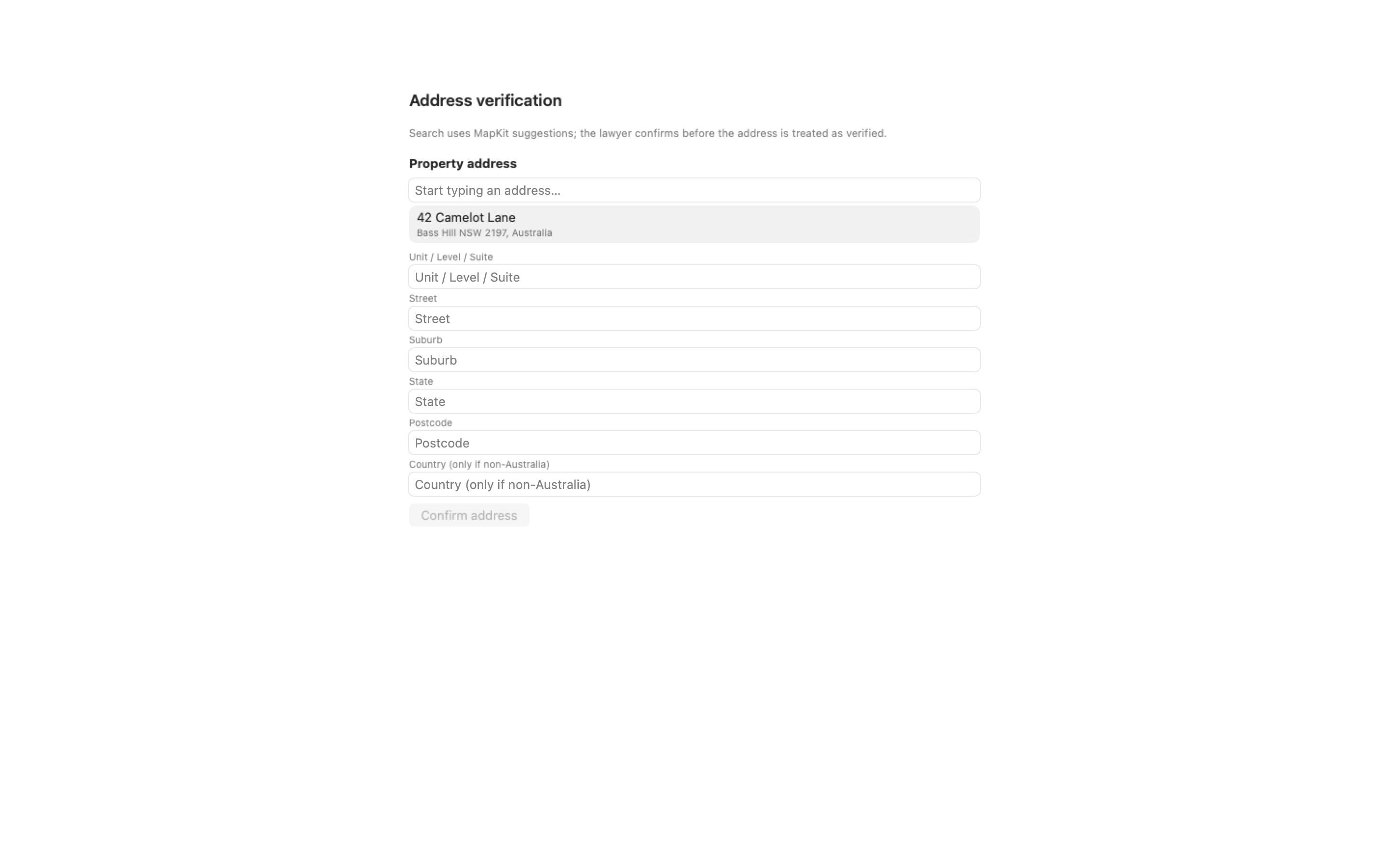
- Type into the street field — MapKit suggestions appear underneath
- Pick a suggestion — the unit, suburb, state and postcode fields populate from the structured parts MapKit returns
- Click Confirm — Certum Draft stamps the address as verified, records the source (
MapKitif you picked a suggestion and didn’t edit the structured parts afterwards, otherwiseManual), the date, and a fingerprint of the canonical form
Once verified, the section shows a “Verified · MapKit · 28 May 2026” badge under the address. Editing any structured field after verification clears the verified marker — re-confirm to re-verify.
Linked clients and Notion
Section titled “Linked clients and Notion”When a client is linked to the Notion register, Notion owns the client’s name: the surname, given names and full name Notion supplies show read-only in the form with an Open in Notion link, and parts Notion leaves empty stay editable. Address, email and phone edits made here reach the client’s Notion page on save and stay edited when the matter is reopened; a Notion Phone field holding more than a mobile and a landline (names, notes, several numbers) is never overwritten. A client update that can’t reach Notion is kept and retried, and if a colleague has changed the page in the meantime it waits for Retry or Discard in Settings → Notion.
Shared Note
Section titled “Shared Note”If Notion integration is configured, you’ll see the Shared Note from your Notion matter page. This note is visible to all team members and syncs both ways — edit it here or in Notion. If someone edits the note in Notion while you have it open, Certum Draft tells you there’s a conflict and lets you choose which version to keep rather than silently overwriting.
The note keeps its formatting. While editing, select some text and press the bold, italic, underline or strikethrough button beside the Done tick, or use the Format menu (⌘ + B, ⌘ + I, ⌘ + U), and the styling syncs to Notion. Bold, italic, underline, strikethrough, colours and links applied in Notion show here and survive an edit made in Certum Draft. A Notion property holds inline formatting only, so headings, bullet lists and checkboxes are not available.
@mentions in the Shared Note are highlighted in accent colour. Typing @Rodney in the editor creates a proper Notion mention (with notifications) when saved.
Details
Section titled “Details”The full form for editing all matter fields. Each field is one row: the label on the left in a fixed column, the control beside it sized to what it holds (a name fills the row, a date or an amount is a short box, a toggle is a toggle), and any help or error line under the control.
- Workflow Stage Tabs — Switch between stages (Intake, Contract, Settlement, etc.). Press ⌘ + ⌥ + ← / → to move between stages from the keyboard.
- Help — A field’s short help shows while you are in it and as a tooltip over its label; the ⓘ toggle shows the long explanations for every field.
- Required fields — A required field carries a quiet asterisk. The pill above the form counts the required fields still empty on the stage you are on (“3 required in Contract”) and jumps to the next one; the whole-form count is in its tooltip.
- Conditional Fields — Blocks and fields hide or show based on gating booleans (e.g., “Is Strata?” controls whether strata-related fields appear)
- Computed Fields — Some fields auto-calculate from other values (e.g., the addressee block from the client’s title + name) and carry an Auto badge; a Ref badge marks a field that another one reads. If you type over a computed field manually, Certum Draft remembers the override and won’t recompute on top of your edit — re-clearing the field lets the formula resume.
- Quick Entry — When the template defines quick-entry fields, a Quick Entry toggle above the form narrows the form to just the essentials. Press ⇧ + ⌘ + E to toggle it; a “N of M fields” cue shows how much of the form you’re seeing, and the setting is remembered per matter type.
- Read-Only Mode — When another Mac holds the matter lock, you can view all details but editing is disabled; locked fields wear a lock badge. A banner shows who has the lock (see Read-only mode and Take Over below).
Auto-Save
Changes save automatically after 2.5 seconds of inactivity. Look for the “Saved at” indicator in the footer. You can also press ⌘ + S to save immediately. Closing the workspace always waits for any pending save to finish first — if it can’t complete, you’re asked to choose Keep Editing or Discard Changes and Close, so nothing is dropped silently.
When the file changed elsewhere
Saves are checked against the file on disk. If another window, another Mac or the automation API changed the matter file first, the save is refused and a banner reads This Matter Changed Elsewhere. Your edits stay on screen. Reload and Re-apply My N Changes loads the newer version, puts your unsaved field changes back on top and saves; a follow-up banner lists any field changed in both places, with the other value. Copy My Unsaved Changes puts them on the clipboard first. Institution, destination, checklist, critical-date, proposal and invoice-draft edits are not re-applied, and the banner names them before you choose.
If Dropbox has kept a conflicted copy of the matter file beside the real one — two Macs saved while out of sync — a banner says so when the matter opens, because changes from the other Mac may exist only in the copy. Show in Finder selects both files so you can compare them and re-enter anything missing; then move the copy out of the matter folder.
Documents
Section titled “Documents”Browse and manage generated documents:
- Search — Filter documents by name (⌘ + F)
- Sort — By name, date, or type
- QuickLook Preview — Click the eye icon to preview without opening
- Batch Selection — Toggle selection mode to operate on multiple documents
- Regenerate… — Right-click a rendered document to regenerate it; the wizard opens with the template that produced it already selected
Documents live in subfolders of Working Documents that mirror the template folders — the list shows the subfolder so nothing appears to be missing.
Invoices
Section titled “Invoices”Every matter has an Invoices tab for producing a bill:
- Choose a lump-sum narrative or an itemised solicitor-client bill — the fee wording and standard disbursements are seeded automatically from the matter type
- Add, edit and remove fee and disbursement lines freely; each bill type keeps its own lines when you switch
- Pick whether payment goes to the firm’s trust or office account — the generated bill names the account you chose
- Government and court fees (probate filing fees, certificates) are treated as GST-free; professional fees carry 10% GST
- Click Generate to produce an editable Excel bill in
Working Documents/Invoices/with live formulas — adjust an amount in Excel and the GST, subtotals and total recalculate. The statutory Notification of Client’s Rights notice and the firm’s header are included automatically.
Your draft is saved as you type and survives closing the matter — reopen the tab and everything is as you left it. Invoice numbers seed themselves one past the last bill for the matter; if the file already exists, you’re asked to Replace it or Keep Both (which issues the bill under the next free number).
A Generated bills list at the bottom of the tab records each bill you’ve generated (newest first), with a button to reveal the file in Finder.
Estate (deceased estates)
Section titled “Estate (deceased estates)”Estate matters gain an Estate section — the distribution picture for the estate:
- Holdings, grouped — the lines are grouped into Assets (the real property among them), Liabilities and Passed outside the estate, largest first, each labelled with the holding’s own name and marked “Received d MMM” once funds have been recorded
- Net estate — built automatically from the values at death recorded on the Institutions tab, plus the real property value from the Details tab. A holding closed as transferred outside the estate (a joint account by survivorship, a nomination paid direct) is listed greyed and left out of every figure
- Administration costs and specific legacies — deducted to show the residue
- Per-beneficiary entitlements — computed live from each beneficiary’s percentage share, with a warning if the shares don’t total 100%
- An executor’s-year interest hint (s 84A) reminds you when interest starts accruing on unpaid legacies
Everything you see here flows into the distribution letters — the letter renders exactly the figures on this screen, and the figures refresh whenever an estate input is edited on any tab.
Critical Dates
Section titled “Critical Dates”Press ⌥ + ⌘ + I (or the calendar button in the toolbar) to open the Critical Dates inspector — the matter’s deadline calendar in a side panel:
- Anchor dates (exchange, settlement, date of death…) can be typed or picked right in the panel. A past anchor date is an event, not a missed deadline: “Contracts exchanged” never reads as overdue, and its chip greys out. Hard deadlines and due dates (cooling-off, balance due, a CDD review) keep their red chip when missed.
- Derived dates are calculated from the anchors — hover one to see “Calculated from …” so you know where it came from. Edit date… overrides a derived date when the calculation doesn’t fit the file, and Reset to computed date puts the derivation back. Where the pack ties the entry to a form field (the cooling-off last day, the funds-due date on a purchase), editing here writes that field, so the card, the form, the reminders and the letters agree.
- Tick a date off with the circle beside it once it’s done — it turns green and strikes through. Tick again to restore it. Ticked-off dates stop nagging you on the dashboard. A settlement date that passes unticked asks on the Overview whether to mark it settled or move the date.
- Export to Calendar saves the dates as an
.icsfile you can import into Outlook or Apple Calendar - On an estate, setting the grant date here records the grant: institutions waiting on it move to Ready for Grant and their chase dates compute from it, the same as recording the grant on the Institutions tab. When the matter has institutions you’re asked to confirm first, since it moves every one of them; clearing the date retracts the grant.
If notifications are off on your Mac, the panel says so and links to System Settings — reminders can’t fire without them.
Matter Checklist
Section titled “Matter Checklist”On matter types that define one (Sale and Purchase of Land, and Lease – Landlord), a checklist appears under the Critical Dates panel — the same running checklist the firm previously kept in the Notion matter page, now in the matter itself:
-
Items are grouped by workflow stage with progress counts per stage and overall (“Pre-Settlement 9/14”).
-
Click the circle to tick an item off; right-click to mark it not applicable (it leaves the counts) or to reopen it. Hovering a done item shows who ticked it and when.
-
Only relevant items appear. Strata items (s184, s22 notices) only show on strata matters, mortgagee items only when there’s a mortgage on title, agent items only when an agent is involved.
-
Some items tick themselves. Items tied to matter data — “Contracts exchanged” when the exchange date is entered, “Settlement attended” once the settlement date passes — complete automatically, marked with a small sparkle. Anything you tick or untick by hand stays yours; automation never overrides it.
-
Some items watch the folder. A pack can tie an item to a file pattern, so on a lease renewal “Fresh title search on file” ticks itself when the search lands in the matter folder.
Ticks save with the matter and sync across the office like every other matter edit. If the matter is linked to Notion, the register’s Checklist column shows a one-line progress summary (“42/54 · next: Serve 184 certificate”) — the checklist itself lives in Certum.
The items come from the matter type’s template (checklist in matter.json), so the firm’s template maintainer can add, reword, or re-order them; existing matters pick up changes without losing ticks.
Delegating a step
Section titled “Delegating a step”Right-click a pending step and choose Delegate… to hand it to a colleague as a task on the matter. The sheet takes the task’s title (the step’s wording, editable), who it is for — nobody is picked until you choose, and you may pick yourself — and a due date, which starts from the step’s critical date when it has one (“Settlement attended” starts on the settlement date) and can be changed or cleared.
Once sent, the step shows its holder’s first name after its title (“Sending…” until Notion has the task); click the name, or Open Task, to open the task on the Tasks page. From then on the two are one: ticking the step completes the task, ticking the task (in Certum, on the Tasks page, from Apple Reminders or in Notion) ticks the step, and reopening either reopens the other. Marking a delegated step not applicable leaves its task open and says so. If sending failed, Send Again appears; if Notion can no longer find the task, Release Link unhooks the step. Delegating needs Tasks set up on this Mac and the matter linked to Notion; see Tasks for how the task behaves on the other side.
Reading documents into a matter (document intake)
Section titled “Reading documents into a matter (document intake)”On estate matters you can drop documents straight onto the matter window — death certificates, wills, driver licences, passports, bank, super, share and insurance statements, and title searches, as PDFs or photos. You can also choose More ▸ Read Document… in the toolbar.
Certum Draft reads the document entirely on your Mac (nothing leaves the machine) and opens a review sheet: proposed values on one side, the document on the other. Nothing is saved until you confirm:
- Every proposed value is editable; anything that would overwrite existing data is flagged and left unticked
- Statements also propose an institution record for the Institutions tab (or a new account on an existing one)
- Choose where the document is filed — Important Documents or Correspondence
- Skip moves to the next document in the queue; Stop Reviewing ends the run and leaves the rest untouched
Applying values is undoable — the confirmation message offers Undo, which restores exactly what was overwritten.
Workflow Timeline
Section titled “Workflow Timeline”The stage list in the Overview’s Matter panel shows your progress through the matter’s workflow stages:
- Completed stages show a green checkmark
- Current stage shows as a highlighted dot
- Future stages show as grey circles
Clicking a stage to move the matter’s stage asks for confirmation first, so looking doesn’t change anything.
Toolbar Actions
Section titled “Toolbar Actions”The toolbar carries the verbs reached for all day; everything else is in More, the Matter menu and the ⌘K palette.
| Toolbar item | Shortcut | Description |
|---|---|---|
| Back | — | Return to the dashboard |
| Email Client | ⌥ + ⌘ + E | Compose an email with the matter’s subject line |
| File Note | — | Capture a PDF file note into Correspondence |
| New Document | ⌘ + ⇧ + D | Launch the document wizard. The chevron beside it lists New Document, File Note, New Task and an Add to Matter section — Add Client, and on estates Add Institution |
| More | — | The rest (below) |
| Critical Dates | ⌥ + ⌘ + I | Show or hide the Critical Dates inspector |
More holds Copy Email Subject, Copy Link, Open Folder and New Task; a jump to Institutions (with the count) on estates; a Compliance submenu (Go to Compliance, Generate CDD Report, Run PEP/Sanctions Check) when the pack has that stage; Pinned to Dashboard, a tick that pins or unpins the matter (disabled at four pinned matters, with “unpin one first”); then Working Documents, Open in Notion, Copy Matter #, Export as ZIP, Export Audit Summary PDF, Print Summary, Save Notion Link, Stamp Duty Calculator and Finalise Matter…; and on estates Read Document… for document intake.
The Matter menu follows whichever matter window you are in, main or secondary: Save (⌘ + S), New File Note…, Print Summary…, Refresh Documents (⌘ + R), Email Client and Close Matter (⌘ + W). ⌘ + W and ⌘ + S do nothing while a sheet such as New File Note is open, so they can’t close the matter behind it. The ⌘K palette lists the open matter’s verbs too.
Proposals from agents
Section titled “Proposals from agents”An AI assistant working through the automation API never writes a field directly: it proposes values, and they wait on the matter until you review them. A banner on the workspace, a Proposals to Review card on the dashboard, a Proposals column in the Matters table and the menu-bar item all count what is waiting, and opening a matter from the dashboard card brings the review sheet up with it.
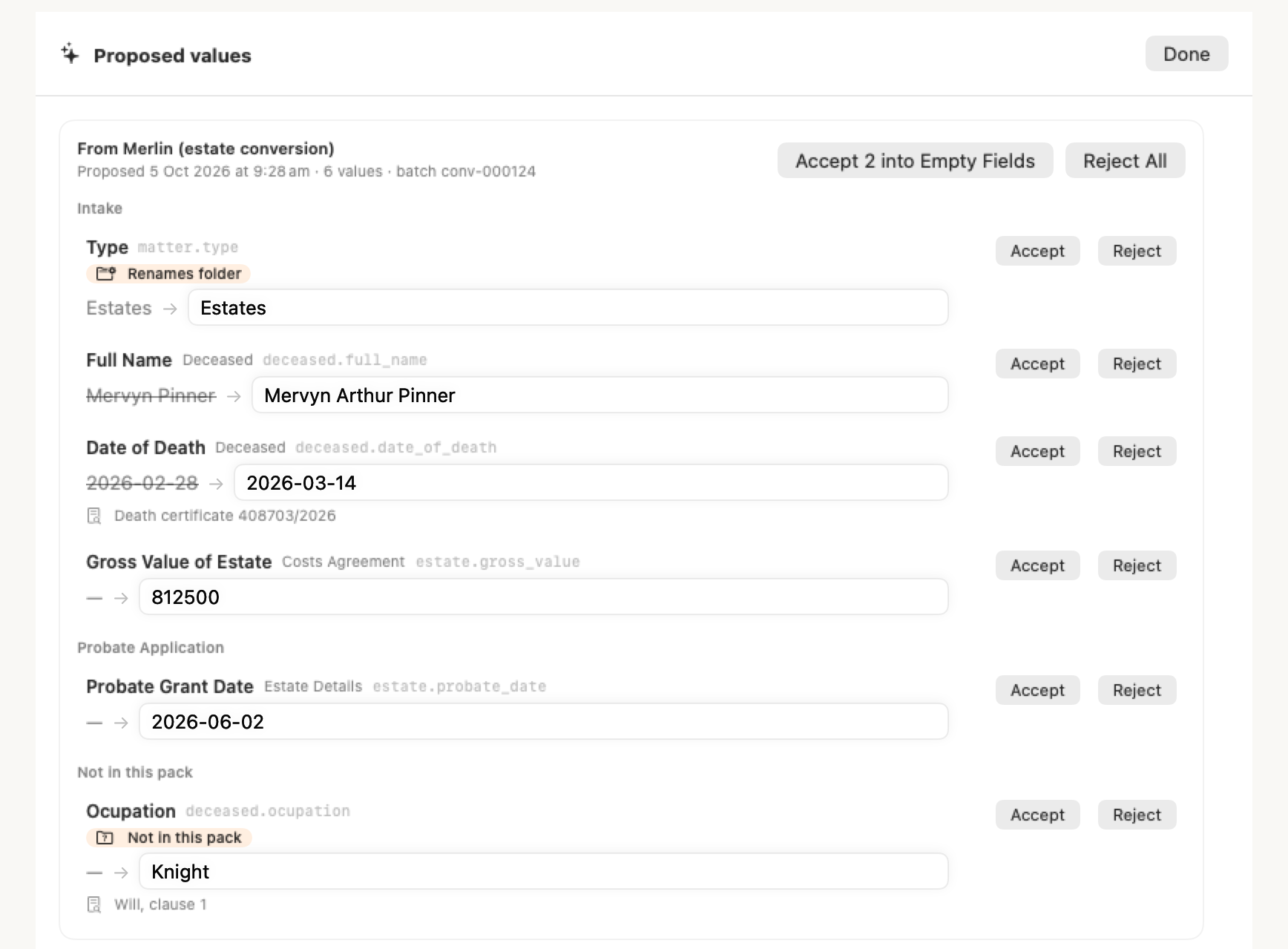
The review sheet is a desk, not a yes/no dialog. Each row shows the field’s label, block and stage from the pack, the current value and the proposed one, and you can edit a value before accepting it: Yes/No fields and fixed choices use pickers, dates and amounts are checked and stored in the app’s format, and anything invalid is refused with a message. Chips flag values you typed by hand, fields that changed since the proposal was made, hidden and computed fields, keys this pack doesn’t have, and fields that would rename the matter folder. Accept N into Empty Fields takes only the proposals that fill empty, ungated fields and leaves everything risky for you to decide row by row; Reject All discards the batch. On the highlighted row, ⌘ + ↩ accepts and ⌘ + ⌫ rejects. An agent can also propose asset holders on an estate (they appear after the field batches with their holdings and a provenance note) and tasks for colleagues (under Proposed tasks, where the title, assignee and due date can be changed before Accept; nothing reaches Notion or the colleague until then). Every decision is logged on the matter, so the agent can ask what happened to its batch.
Read-only mode and Take Over
Section titled “Read-only mode and Take Over”Only one Mac edits a matter at a time. If a colleague (or your other Mac) has the matter open, you can still read everything, but editing is disabled and a banner says “Read-only — NAME is editing this matter”, with when they were last seen.
If you’re sure they’ve walked away, click Take Over. Certum Draft asks you to confirm first — taking over while they’re still working could lose their unsaved changes. The moment you take over, their copy flips to read-only with a banner naming you; if they had unsaved edits, they’re told immediately (“Your latest edits can’t be saved — NAME took over this matter”) and asked whether to discard them or keep viewing.
The lock also releases itself after about five minutes of genuine inactivity — but scrolling, typing and switching sections all count as activity, so reading a matter during a phone call won’t hand your lock away. When you start editing again, the lock is re-acquired automatically.
Batch Document Operations
Section titled “Batch Document Operations”To work with multiple documents at once:
- Click the selection toggle button in the Documents toolbar
- Check the documents you want to work with
- Use the batch action buttons:
- Open All — Open selected documents in their default apps
- Email All — Attach selected documents to an email
- Show in Finder — Reveal selected documents
QuickLook Preview
Section titled “QuickLook Preview”Preview documents without opening them:
- In the Documents section, find the document you want to preview
- Click the eye icon on the document row
- A preview sheet appears with the document content
- Close the preview to continue working
Institutions (Estates)
Section titled “Institutions (Estates)”For estate matters, the sidebar shows an Institutions section after the first workflow stage. This is where you track banks, super funds, aged care providers, and other asset holders — including each holding’s value at death, which feeds the Estate distribution figures.
Adding Institutions
Section titled “Adding Institutions”Click the + button in the institutions toolbar to open the institution picker:
- Search by name, ABN, or address
- Filter by type (Bank, Super Fund, Aged Care, etc.)
- Institution logos load automatically
- Click to add, then enter account/member/policy numbers
Institution Lifecycle
Section titled “Institution Lifecycle”Each institution progresses through phases:
- To Notify — generate a Notice of Death letter
- Awaiting Response — notice sent, waiting for the institution to respond
- Awaiting Grant — institution requires Grant of Probate (not yet issued)
- Ready for Grant — grant has been issued, generate Grant Letter
- Awaiting Funds — grant letter sent, waiting for assets to be released
- Complete — funds received
The current phase and next action are shown for each institution. When the Grant of Probate is recorded on the matter, a banner appears offering to batch-generate all grant letters at once.
Recording a Response
Section titled “Recording a Response”Click “Record Response” to capture:
- Response date
- Whether Grant of Probate is required (Yes / No / Unsure)
- Requirements notes (what the institution needs to release assets)
AML/CTF Compliance
Section titled “AML/CTF Compliance”Purchase, Sale, and Estates matters include a Compliance tab (second workflow stage) with blocks for:
- Identity Verification — ID document type, number, expiry, verification method
- PEP & Sanctions Screening — Politically Exposed Person checks, DFAT sanctions
- Risk Assessment — Client, transaction, and jurisdiction risk factors (Low/Medium/High)
- Source of Funds — Funding source, transaction value, evidence sighted
- Source of Wealth — Only visible when Enhanced Due Diligence is required (High risk)
- Compliance Status — Overall status, red flags, SMR tracking
The toolbar’s More ▸ Compliance submenu jumps to the Compliance tab, generates the CDD Report PDF and runs the PEP/Sanctions check. When you finalise the matter, the Finalise sheet lists any CDD gates still unattested and links to their fields.
Print Summary
Section titled “Print Summary”Generate a printable summary of the matter:
- Click Print Summary in the More menu
- Review the A4-formatted summary showing:
- Matter and client details
- Property information (if applicable)
- List of generated documents
- Print or save as PDF
Export as ZIP
Section titled “Export as ZIP”Package the entire matter for sharing or archiving:
- Click Export as ZIP in the More menu
- Choose a save location
- The ZIP file is created and revealed in Finder
Keyboard Shortcuts
Section titled “Keyboard Shortcuts”| Action | Shortcut |
|---|---|
| Save | ⌘ + S |
| Undo | ⌘ + Z |
| New Document | ⌘ + ⇧ + D |
| New Task on this matter | ⌘ + ⇧ + T |
| Email Client | ⌥ + ⌘ + E |
| Toggle Quick Entry | ⇧ + ⌘ + E |
| Previous / next workflow stage | ⌘ + ⌥ + ← / → |
| Critical Dates inspector | ⌥ + ⌘ + I |
| Search documents | ⌘ + F |
| Refresh Documents | ⌘ + R |
| Close Matter | ⌘ + W |
| Command palette | ⌘ + K |
These are also listed in the Matter menu so you can discover them without memorising.
Troubleshooting
Section titled “Troubleshooting”Changes not saving
Section titled “Changes not saving”Auto-save requires 2.5 seconds of inactivity. If you’re typing continuously, wait a moment or press ⌘ + S. If a save itself fails (for example, Dropbox is mid-sync), a save-error banner appears with a Retry Save button — retrying never discards what you typed. If the banner reads This Matter Changed Elsewhere, someone or something else saved the file first — see Details above.
”Read-only — NAME is editing this matter”
Section titled “”Read-only — NAME is editing this matter””Another Mac has this matter open. Close it there first, or click Take Over (with confirmation) to claim the editing lock — see Read-only mode and Take Over.
Documents not appearing
Section titled “Documents not appearing”Click the refresh button in the Documents toolbar (or press ⌘ + R). If documents still don’t appear, check that they exist in the matter folder. A permissions or sync problem shows an explicit error with a Try Again button rather than an empty list.
Shared Note not loading
Section titled “Shared Note not loading”Ensure Notion integration is configured in Settings → Notion, which also shows whether Notion is answering and whether the token was rejected. The note requires an active internet connection and valid Notion credentials.