
Invoices
Every matter workspace has an Invoices tab, on every matter type. This is where you build a bill: pick a lump-sum narrative or an itemised solicitor-client bill, adjust the lines, and generate an Excel tax invoice into the matter’s Working Documents folder. The wording — the fee narrative, the standard disbursements, the statutory client-rights notice — is seeded automatically from the matter type, so a probate bill reads like a probate bill without anyone retyping it.
The generated file is a real spreadsheet with live formulas. The secretary can edit amounts in Excel and the GST, totals and amount due recalculate themselves.
The bill looks like the firm’s own: the logo in the letterhead, the firm block beside it, the blue title and section headings, the boxed grid, the sign-off, the payment-method badges beside How to pay and the client-rights notice at the foot — on the lump-sum and itemised layouts and on the Receipt sheet. The logo and badges are read from the _Invoicing folder beside the firm’s wording file; a Mac that cannot see them gets a plain text letterhead.
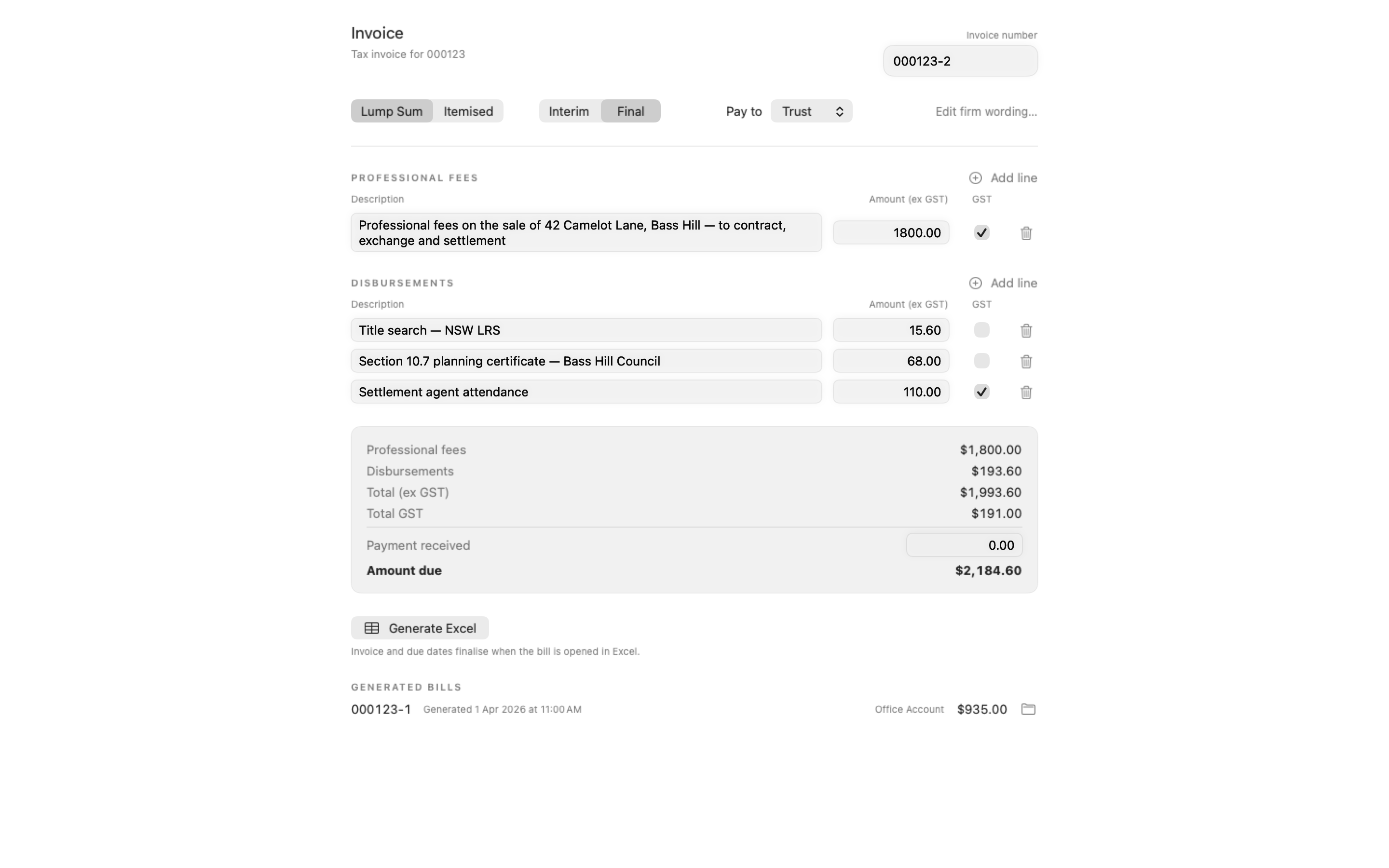
Building the bill
Section titled “Building the bill”Open a matter and click Invoices in the sidebar. The composer has three parts: the bill setup at the top, the line items in the middle, and a totals card at the bottom.
Bill type and account
Section titled “Bill type and account”- Bill type — a two-way picker: Lump Sum (a narrative description of the professional costs) or Itemised (a line-by-line bill). The fee wording for each is seeded from the matter type, and each type keeps its own set of fee lines — switching between them never wipes what you’ve typed.
- Pay to — which firm account the bill names: Trust or Office. Each matter type has its own default — sales and purchases, wills, advice and leases name the office account; estates name trust.
- Payment — how the client pays, which is a separate question from which account is named. Direct payment prints the How-to-pay block with the account’s details. From funds held in trust prints “applied from trust” against the totals and no payment instructions. Deducted at settlement prints the one-line note a conveyancing bill carries. Each matter type seeds its own: a sale is deducted at settlement, an estate is paid from funds held, the rest are direct.
Line items
Section titled “Line items”The bill has two sections: Professional fees and Disbursements. Both are seeded with the standard lines for the matter type — a purchase matter, for example, starts with the planning, rates and water certificates already listed.
- Add a line with Add line; remove one with the delete button on its row.
- Every amount is GST-exclusive. Type the ex-GST figure; the GST is worked out for you.
- Each line has its own GST toggle. Statutory disbursements that carry no GST — court filing fees, planning certificates, title searches — are seeded with GST already off. Professional fees and sundries carry 10% GST.
The totals card
Section titled “The totals card”The totals card mirrors the printed bill, row for row: professional fees, disbursements, Total (ex GST), Total GST, then Payment received (editable) and Amount due. Use it to cross-check the bill before you generate.
Generating the invoice
Section titled “Generating the invoice”Click Generate Excel. Certum Draft writes a file named like Tax Invoice 000123-1.xlsx into the matter’s Working Documents/Invoices folder and offers to open it.
The workbook carries live Excel formulas for per-line GST, subtotals, totals and the amount due, so later edits in Excel recalculate on their own. The invoice and due dates are deliberately left as live =TODAY()-style dates — they finalise when the bill is opened in Excel. Until then, the file is a draft, not an issued bill.
Every bill also carries, from the firm’s wording library:
- The firm header block (name, ABN, address and contact details)
- The payment details for the account you chose, when the bill is paid directly
- The statutory NSW Notification of Client’s Rights notice
Invoice numbering
Section titled “Invoice numbering”Certum numbers each bill one past the highest number already used for the matter — and it checks the files in Working Documents/Invoices, the Generated bills register (below), and any bill or bill PDF filed elsewhere in the matter folder whose name carries the matter number and a sequence (an Invoice 00123-2.pdf in a Correspondence folder counts, with or without the leading zero). Gaps are never reused, and renaming a file in Finder (say, adding “-final”) can’t trick the numbering into re-issuing a number.
If you do generate a bill whose file already exists — perhaps it carries edits made in Excel — you’re asked before anything is replaced:
- Replace — overwrite the existing file (its Excel edits are lost)
- Keep Both (new invoice number) — issue this bill under the next free number instead
- Cancel — go back and change the number yourself
The invoice number itself is editable. It’s free text, but characters that can’t go in a file name are cleaned up — when the saved name will differ from what you typed, a small “Saves as …” caption tells you so.
The Generated bills list
Section titled “The Generated bills list”Below the composer, the Generated bills list shows every bill generated on the matter, newest first: the invoice number, when it was generated, the account it directed payment to, the amount due, and a button to reveal the file in Finder.
Read the dates carefully: the list says “Generated”, never “Issued”. It’s a record of what Certum wrote and when — provenance, not bookkeeping. Because the dates on the spreadsheet finalise when it’s opened in Excel, Excel owns the bill’s lifecycle from there. Whether a bill has been sent or paid is for your accounting records, not this list.
Your draft is safe
Section titled “Your draft is safe”The composer saves as you go. Closing the matter, switching tabs, or quitting the app loses nothing — the line items (both the lump-sum and itemised sets), the payment received figure, the invoice number, the chosen account and the payment choice are all restored exactly as you left them when you come back.
If the firm’s wording is edited while your matter is open, an untouched draft re-seeds with the new wording automatically. A draft you’ve typed in is left alone — your edits always win.
When another Mac has the matter open
Section titled “When another Mac has the matter open”Like the rest of the workspace, the Invoices tab follows the editing lock. If a colleague’s Mac is editing the matter, a banner appears — “Another Mac is editing this matter — the invoice composer is read-only” — and the controls and Generate button are disabled until the matter is free.
Editing the firm’s wording
Section titled “Editing the firm’s wording”The seeded wording comes from a firm-wide library (see Reference Tools for the full editor). You don’t have to leave the matter to fix it: click Edit firm wording… on the Invoices tab and the Invoice Screeds editor opens in a sheet. Changes are saved to the firm’s shared wording file in Dropbox and apply to every new bill, on every matter, once saved.
Related
Section titled “Related”- Reference Tools — the Invoice Screeds editor and the rest of the Reference toolbox
- Editing Matter Details — the matter workspace the Invoices tab lives in
- Settings — where the templates folder (which holds the wording file) is configured
- File Notes — telephone attendances captured at billing-unit minutes, ready for the bill