
Dashboard
The dashboard is the home screen, the first destination in the sidebar (⌘1). It’s a single-page read-out of what needs attention right now: what’s due, what’s on your plate, what your colleagues have been touching, what’s waiting on other people. It’s a viewing surface; you don’t fill anything in here, you scan it and decide what to open.
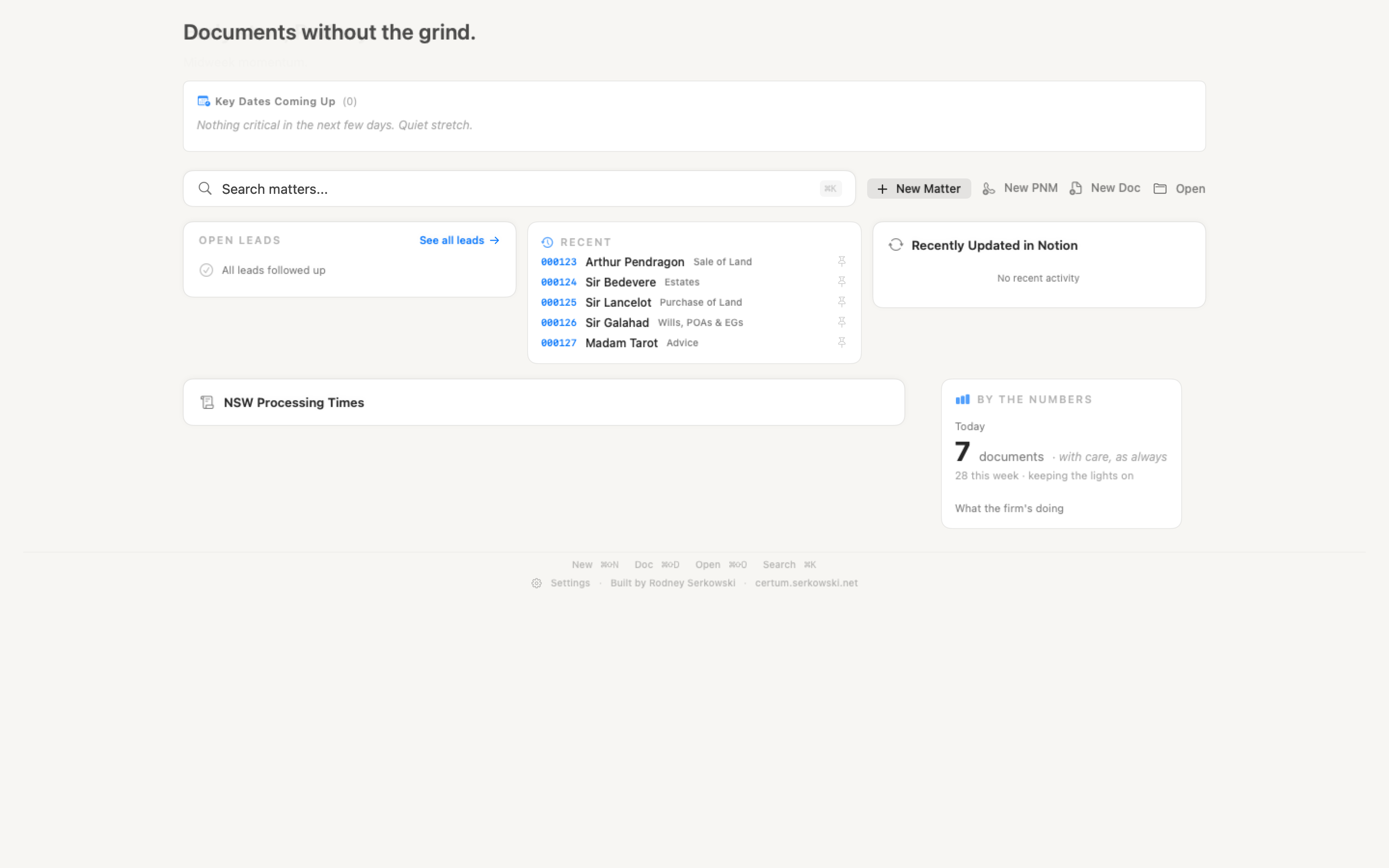
This page walks the dashboard top to bottom.
Greeting, Horace and What’s New
Section titled “Greeting, Horace and What’s New”The band at the top carries a time-aware greeting (“Good morning, Rodney.”), a one-line tagline and, when WeatherKit has location permission and a current reading, the temperature and conditions. If you’ve declined location access or you’re offline the weather line is omitted and nothing else changes.
Horace
Section titled “Horace”The pixel barrister in the band is Horace. He is also the app’s icon and the silhouette in the menu bar. On his first appearance of the day he bows and reads the docket: how many of your tasks call for attention, the nearest hard deadline (overdue or within a week), and any proposals awaiting review across the firm, a bubble each. The first click on him after each arrival gives the docket again; later clicks play a short act from a rotation of props and remarks. He speaks in a speech bubble, muses in a thought balloon, books one encore a minute or so after arriving, and then rests.
Some of his lines are tips: a bubble with a lightbulb about something you may have missed (⌘K’s matter actions, the proposals desk, the Reminders mirror, dropping a file on a task, and so on), each read once and then retired. When Sparkle has an update staged he holds up a brief tied in pink tape and names the version. Inside a matter he marks documents rendered, a proposal reviewed, a grant recorded and a matter finalised, and leads with the matter’s own next date or waiting proposals. With Reduce Motion on he holds still and only his bubble changes. He adds no background work.
What’s New
Section titled “What’s New”One pill at the trailing edge of the band reads What’s New and opens the release notes for the last two versions, with a dot until you’ve read them after an update. While an update is in flight the same pill carries the status (“Downloading 0.9.389”, “Restart to update”, or the issue if one fails), and its popover becomes the matching panel; after an update lands it wears a tick until you’ve opened the notes.
Toolbar and search
Section titled “Toolbar and search”The window toolbar holds New Matter (⌘N) with a chevron menu beside it offering New Matter, New Document (⌘⇧D), New Lead (⌘⇧P) and New Task (⌘⇧T), and Open (⌘O), which is search-first: recent matters, a number or surname, and a “Choose folder…” fallback.
Under the greeting sits the search bar. It opens the command palette (⌘K), which searches matters, contacts, documents, tasks and actions in one place, with scope chips to narrow the kind; a matter row carries the dashboard pin, so several files can be pinned in one pass. If your firm uses Leads, a New Lead button sits beside the bar. See Finding Matters.
Key Dates
Section titled “Key Dates”Key Dates is the page’s main panel: every active critical date across your matters, read from the matter files (the “as of 9:41 am” caption says when). It answers two questions:
- This week — what to act on: anything overdue (red), due today (orange) or within seven days, nearest first, with the single most urgent row given a stronger tint. Overdue leads and your overdue tasks join this list as rows of their own, opening the Leads list and the Tasks page. Dates two to six days out show the weekday with the date (“Sun, 13 Sep”).
- Coming up — the horizon: everything further out in one chronological list, including statutory deadlines months away. It never shows more rows than This week does, so the horizon doesn’t set the panel’s height.
Busy lists cap at five rows behind Show all N dates. Hard legal deadlines (limitation dates, hearings) carry their own marker and appear however far away they are; their reminders escalate as the date approaches and fire even when routine matter reminders are off in Settings, since a statutory deadline is not routine. Past anchor dates such as “Contracts exchanged” are events, not overdue items, and drop out once passed; a settlement date that passed without being ticked asks whether to mark it settled or move it.
Just created lists matters created in the last 24 hours as a chip row at the foot, so a new matter surfaces before it has any dates of its own. Clicking a row or chip opens the matter; right-click for Open Matter, Copy Matter Number and Copy Link.
Today and Recent
Section titled “Today and Recent”Under Key Dates sit two panels side by side (stacked in a narrow window), with Institution Notifications and Open Leads as plain sections beneath them in their columns.
When the firm’s Notion Tasks database is connected, the left panel is Today: what’s overdue or due today on your list, five rows at most, one line each with the matter pill (or Office) and a tick. Red is reserved for your own lateness; a colleague’s late task is amber. Tick a task on the card, click a row for its detail popover, right-click for the same menu as the Tasks page, or use New task to capture one. The title opens the full Tasks page (⌘5).
The footer is one line of counts, each opening the Tasks page at the right place: overdue, today, upcoming, waiting on others, N unfiled in amber when any task in the firm has no matter, and a chevron when more is due than the card shows. Done for you lists tasks you delegated that were ticked in the last two days, each opening the row in the Logbook. A capture that couldn’t reach Notion, or a write Notion refused, shows as one line with Retry. When the card has nothing to show it reads “Nothing due today.”
If tasks are configured but the Mac doesn’t know who you are yet, the card itself asks “Who are you?”; see Tasks setup.
Supervision line. On a Mac where Settings → Notion → Tasks → “Show the supervision line on this Mac” is ticked, the card ends with one amber line of counts: delegated tasks more than a week late, tasks In review untouched for more than three business days, unassigned tasks, and active matters with no open task and no critical date. Counts only, no names; a zero is left out and the line disappears when all four are. Each task count opens the Firm list on the first such task; the matters count opens the Matters table filtered to No next step. The switch is off by default and never travels in the Setup Pack.
Proposals to Review
Section titled “Proposals to Review”When an AI agent has staged values on any matter through the automation API, a Proposals to Review panel appears under Today listing every matter with proposals waiting and how many. A row opens the matter with its review sheet already up. It hides itself when nothing is waiting.
Recent
Section titled “Recent”The right panel is one recency list, your local matters and the firm’s Notion register activity in a single feed, most recent first:
- Pinned (N) — matters you’ve pinned, four at most. Pin from a row’s hover control, its right-click menu, the Matters table or the ⌘K palette (⌘P on a row); when the list is full the controls stay but say “unpin one first”.
- Recent — the most recently active matters.
Each row is two lines: the matter’s type glyph in its type colour, number, client and stage on the first; the matter type and the property address or “Estate of …” on the second, so a client with several files reads as several files. Hover for the full text and the pin and Reveal in Finder actions; right-click for Open in New Window and the Notion register page. Matters that exist only in the register (no local folder yet) appear as plain rows that open the register page. Drop files or Mail messages onto a row to file them into that matter; the confirmation names where they landed and offers Undo. See all matters opens the Matters table.
Open Leads
Section titled “Open Leads”Under Recent, a plain section lists Potential New Matters not yet converted. Each row is a person and a matter type (“Darcy J. · Wills · new”) with the practitioner as an initials circle (hover for the name, click to filter the Leads list to them). Untouched leads get an idle badge and anything past three weeks is flagged cold; a “N need attention” button appears when leads are overdue for follow-up, and See all leads opens the Leads destination. A “N folders without a lead” pill appears when the intake folder holds folders with no Lead record, opening the reconciliation list. See Potential New Matters.
Institution Notifications
Section titled “Institution Notifications”Under Today, a plain section appears whenever any estate matter has institutions in progress, and hides itself when there’s nothing to chase. Matters are grouped one row each: client, institution count and the age of the oldest outstanding notification, with a running “N need chasing” count in the header. Click a row to expand it to the individual institutions and their phase; the matter number is a link that opens the matter on its Institutions pane.
“Needs chasing” here uses the same rule as the Institutions pane and the reminders: only an institution awaiting a response or awaiting funds is chased, a “review on” date logged on the contact log overrides the flat fortnight, and an institution whose follow-up task is open and assigned is stood down, since the task’s own reminder covers it. See Institutions.
The footer
Section titled “The footer”The page footer carries one line: how many documents the firm has created today, the running weekly total, and a rotating tagline. The counts come from each matter’s Working Documents folder, real files produced today, not a Notion count. Beside it sit a Settings link and a link to this site.
The NSW Supreme Court and LRS processing times, the news feed and the firm’s matter-type breakdown live on the Reference destination (⌘4); see Reference Tools.
The Matters list
Section titled “The Matters list”The sidebar’s second destination (⌘2) is a sortable table of every matter on file. Its columns are Number, Client, Type, Created, Next date (the earliest upcoming critical date), Last activity, Proposals (values an agent has staged for review) and Tasks (open tasks across the firm, with the overdue count in red; sort descending to put the files with the most overdue work first).
The filter box matches number, client, type or address (accents ignored), and Return opens the selected matter. Finalised matters are hidden by default; tick Show finalised to include them. Proposals to review narrows the table to matters with staged values, and No next step to active matters with no open task and no critical date. The table keeps its filter, sort and selection while you open matters, and its right-click menu carries Pin and Unpin.
Related
Section titled “Related”- Tasks — the Today card’s lists in full
- Potential New Matters — what feeds Open Leads
- Creating a New Matter — what happens when you click New Matter
- Settings — WeatherKit, folder locations, the supervision line and other dashboard inputs