
Finding Matters
Certum Draft keeps several ways to get back to a matter: the search on the dashboard, the Matters table, the ⌘K command palette, Spotlight and Siri outside the app, and — for work that hasn’t become a matter yet — the Leads list. This page covers them all, plus the setting that keeps your finalised matters findable after you’ve moved them out of the active folder.
Searching from the dashboard
Section titled “Searching from the dashboard”The dashboard’s search field sits above Key Dates. Type any of:
- Matter number — “000123” or just “123”
- Client name — any part of it
- Matter type — “probate”, “purchase”
- Property address — the street address on the matter
Matching ignores accents and capitalisation: “renee” finds “Renée”, “muller” finds “Müller”. Results drop down as you type; use the arrow keys to move through them and Return to open one.
The Matters table
Section titled “The Matters table”Choose Matters in the sidebar (or press ⌘ + 2) for the full table of every matter in your matters folder — browsable, sortable, and complete, not just the recent handful.
The columns:
- Number — the matter number
- Client — the client’s name (or the matter title when no client name is set)
- Type — the matter type
- Created — when the matter was created
- Next date — the soonest upcoming date in the matter’s critical dates, so you can see what needs attention without opening the matter
- Last activity — when anything in the matter’s folder last changed
- Proposals — how many agent-proposed values or tasks are waiting for review on the matter (see Automation & AI Agents)
- Tasks — the matter’s open tasks across the firm, whoever holds them, with any that are overdue in red. Hover for the counts in words. Sorted descending, the files with the most overdue work come first. Office tasks aren’t counted, and the column stays blank until the first task refresh of the session
Click a column header to sort by it. Double-click a row (or select it and press Return) to open the matter; right-click for Open Matter, Review Proposals… (when any are waiting), Open in New Window, Show in Finder, Pin to dashboard / Unpin from dashboard, Copy Matter Number and Copy Link. The filter field at the top right narrows the table as you type. Three checkboxes filter it: Proposals to review, No next step — the active matters with no open task and no critical date, which waits for the firm’s tasks to load before claiming every matter is covered — and Show finalised. The table keeps its filter, sort and selection while you open matters and come back, and its rows follow a save.
The command palette
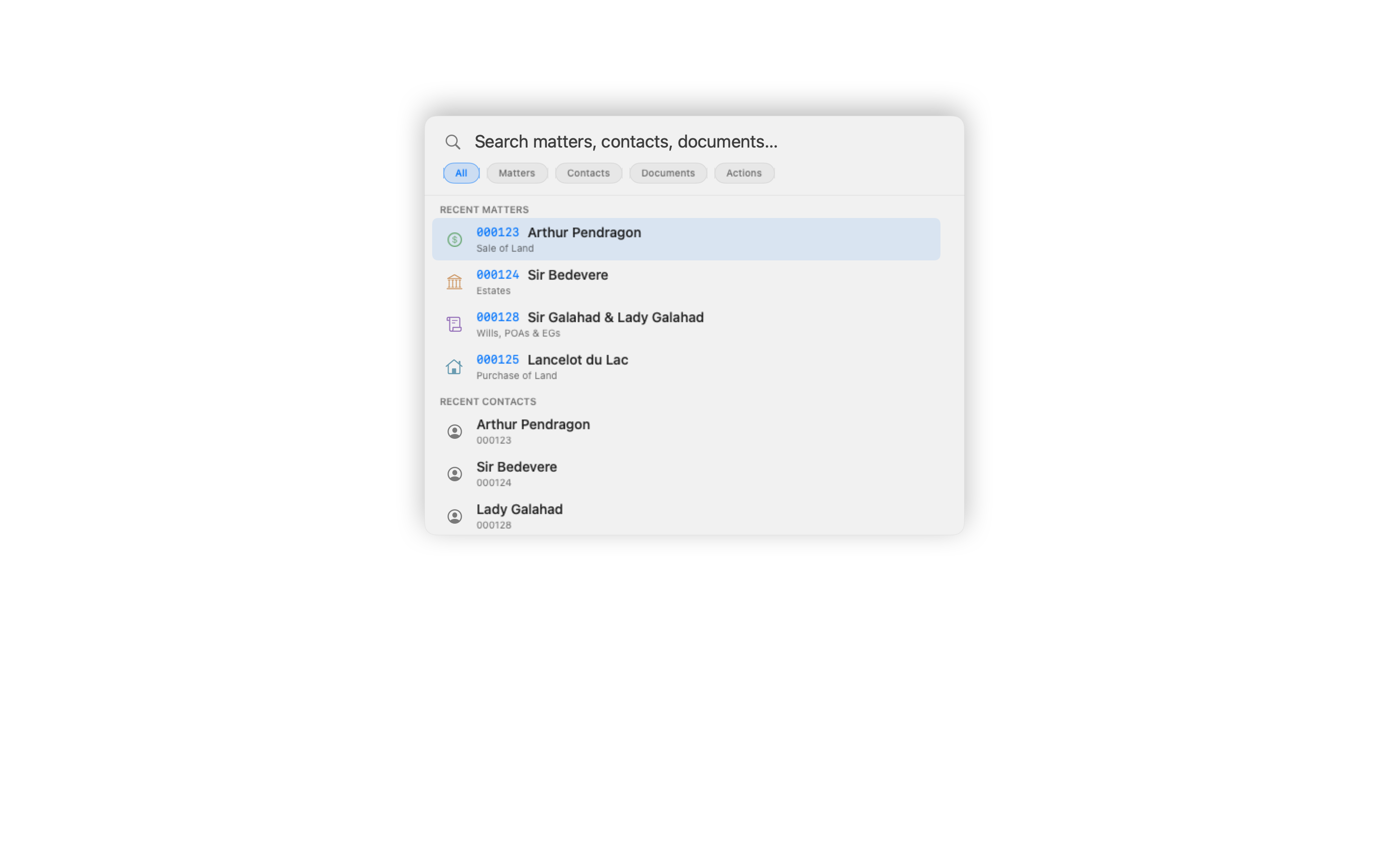
Section titled “The command palette”Press ⌘ + K in any Certum window — the dashboard, a matter in its own window, a lead, New Task — to open a Spotlight-style palette over that window. It searches five kinds of thing at once, with scope chips under the field to narrow to one — All / Matters / Contacts / Tasks / Documents / Actions (Tab and ⇧Tab cycle them):
- Matters — by number, client, type, property address and, on an estate, the deceased’s name. Open matters rank before finalised ones and your recent matters higher still. Each row’s second line shows the matter type and the property address (the fastest way to tell two files for one client apart) or, for an estate, “Estates · Estate of Mervyn Pinner · Probate”; finalised matters wear the Finalised chip, and recent ones show when they were last touched on the trailing edge.
- Contacts — client names across every matter, active and finalised. Each result lists all the matters that name appears on, so a name search doubles as a lightweight conflict check: Return on a one-matter contact opens the matter; on a multi-matter contact it drills down to their matters in place.
- Tasks — open tasks: yours, the ones you’re waiting on, and the rest of the firm’s, matched on the title, the matter’s number or name, Office or Unfiled, and who holds the task. Each row shows the task’s matter, holder and due date, and Return opens it on the Tasks page in the list that holds it, selected and expanded. In All, tasks come after matters and contacts, four at most; the Tasks chip lists up to twenty, soonest due first when nothing is typed. A query that is only a number still finds matters only. The search uses the tasks the app already has — no extra Notion requests.
- Documents — the rendered Working Documents of the matter in the window the palette was opened over, by filename and subfolder. Return opens the document; ⌘Return reveals it in Finder.
- Actions — New Matter, New Document, New Task, New Lead, jumping to any sidebar destination, Check for Updates… and Settings…. With a matter open, its own verbs appear too: New File Note, Save, Email Client, Print Summary, Open Folder, Export Audit Summary PDF, Finalise Matter and the rest.
- Return opens the selected result.
- ⌘ + Return opens a matter in a new window — handy when you want two matters side by side.
- ⌘ + P pins or unpins the selected matter on the dashboard — the row carries the pin (filled when pinned, an outline when there’s room for another; four at most), so several files can be pinned in one pass.
- Esc (or clicking away, or ⌘ + K again) closes the palette.
Hovering a row highlights it without scrolling the list; only the arrow keys scroll. With nothing typed, the palette shows labelled Recent Matters and Recent Contacts before the actions.
From any app — ⌃⇧K
Section titled “From any app — ⌃⇧K”Press ⌃⇧K in any app — Mail, Word, a browser — and the same palette floats over what you’re reading, the way the task capture’s ⌃⇧Space does. Type straight away; the app you were in keeps focus. Return on a matter, a task or a command brings Certum forward and lands there, reopening the dashboard if it was closed; a document opens in Finder or its own app with Certum left where it was. Escape, a click elsewhere or the chord again puts the palette away.
Over another app there is no open matter, so the Documents scope and a matter’s own commands are absent. The chord is on by default on every Mac; Settings → General has the switch, and says if another app already holds the chord.
Outside the app
Section titled “Outside the app”- Spotlight indexes every matter, current files first: open matters rank ahead of finalised ones and recently worked-on ones ahead of stale ones. Task titles are deliberately kept out of Spotlight; the task actions appear there instead.
- Siri and Shortcuts find a matter by its number or by the first client’s surname. The App Shortcuts are Open Matter, Show Matter in Finder, Open Matter in Notion, Show This Week’s Deadlines (opens the dashboard), Generate Document, New Matter, and the task verbs New Task, Complete Task and Snooze Task. Each either opens a view or queues a change; Siri never reads a task’s contents back.
- File › Open Recent opens by matter number, so a matter whose folder was renamed since you last had it open still opens, and the entry picks up the new path.
The Leads list
Section titled “The Leads list”For enquiries that aren’t matters yet, choose Leads in the sidebar (or press ⌘ + 3). Two tabs — Open and Closed — list your leads with columns for name, stage, practitioner, next action date and last edited. The search field covers the caller’s name, phone, email and likely matter type. Double-click a row (or press Return) to open the Lead Inspector; the full lead workflow is on the Potential New Matters page.
Finding finalised matters
Section titled “Finding finalised matters”When a matter finishes, most firms move the folder out of the active matters folder into an archive. Certum Draft can keep looking there:
- Open Settings → Paths.
- Under Finalised Matters, choose the folder you move completed matters into.
- Save. Nothing is moved or changed on disk — Certum simply also looks in that folder.
From then on, finalised matters stay searchable and openable, and they can still generate documents. They’re marked with a Finalised badge in search results and in the Matters table, and the table hides them by default — tick the Show finalised checkbox at the top of the table to include them. The header tells you the split at a glance (“120 active · 45 finalised”), and the active list and firm statistics stay focused on the live caseload.
Related
Section titled “Related”- Dashboard — the search field, Recent and the pinned matters
- Tasks — what a task row in the palette opens onto
- Potential New Matters — the lead-to-matter workflow behind the Leads list
- Keyboard Shortcuts — every shortcut, including ⌘K and the destination keys
- Settings — paths, including the Finalised Matters folder