
Notion Integration
Certum Draft integrates with Notion to manage your client, matter, lead and task databases. Search existing clients when creating matters, write new matters back to Notion, sync the shared note and the checklist both ways, run the firm’s tasks, and capture phone-call enquiries as Leads.
What You Can Do
Section titled “What You Can Do”| Feature | Direction | Description |
|---|---|---|
| Search clients | Read | Find existing clients when creating matters |
| Search matters | Read | Look up matters by number or client |
| Create matters | Write | New matters land in Notion with client relation, type, status |
| Create clients | Write | New clients are added to your Clients database |
| Capture Leads | Write | Phone-call enquiries logged to a separate Leads database |
| Watcher tagging | Write | Default firm members tagged on every new Lead |
| Team tagging | Write | Selected team members tagged on every new matter |
| Shared Note sync | Both | Edits sync both ways, formatting included, with conflict resolution if both sides change at once |
| Client contact details | Both | A linked client’s email, phone and address edited in Certum reach the client page; Notion owns the name |
| Tasks | Both | Per-matter and Office tasks in a shared Tasks database — captured, ticked, delegated and repeated from Certum, visible to the whole team in Notion. See Tasks |
| Matter checklist sync | Both | The matter’s checklist appears on its Notion page as real to-dos; ticks flow both ways |
| Address verification | Write | Verified-address metadata round-trips to structured properties |
| Certum link | Write | A certum:// URL is saved on each matter page for reopening |
| Registers | Write | Transfer Duty and AML/CTF register rows under the firm’s Registers page. See Compliance |
Setting Up Notion
Section titled “Setting Up Notion”-
Create a Notion Integration
Go to Notion Integrations, click New integration, give it a name (e.g., “Certum Draft”), select your workspace, and click Submit.
Enable these capabilities:
- Read content
- Update content
- Insert content
- Insert comments — needed for the completion notice to whoever assigned a task, and for the team comment on a new matter. Without it those two fail (and Settings → Notion says so); everything else works.
Copy the Internal Integration Token — Notion’s current tokens start with
ntn_; older tokens start withsecret_. Both are accepted. -
Share Databases with the Integration
In Notion, open your Clients database, click ⋯ (More) → Connections → find your integration and connect it. Repeat for your Matters database (and later, the Leads database).
-
Find Your Database IDs
Each Notion database has a 32-character ID in its URL:
https://www.notion.so/yourworkspace/abc123def456...?v=...^^^^^^^^^^^^^^This is the database IDYou can also paste the full URL into Certum Draft — it extracts the ID for you.
-
Configure in Certum Draft
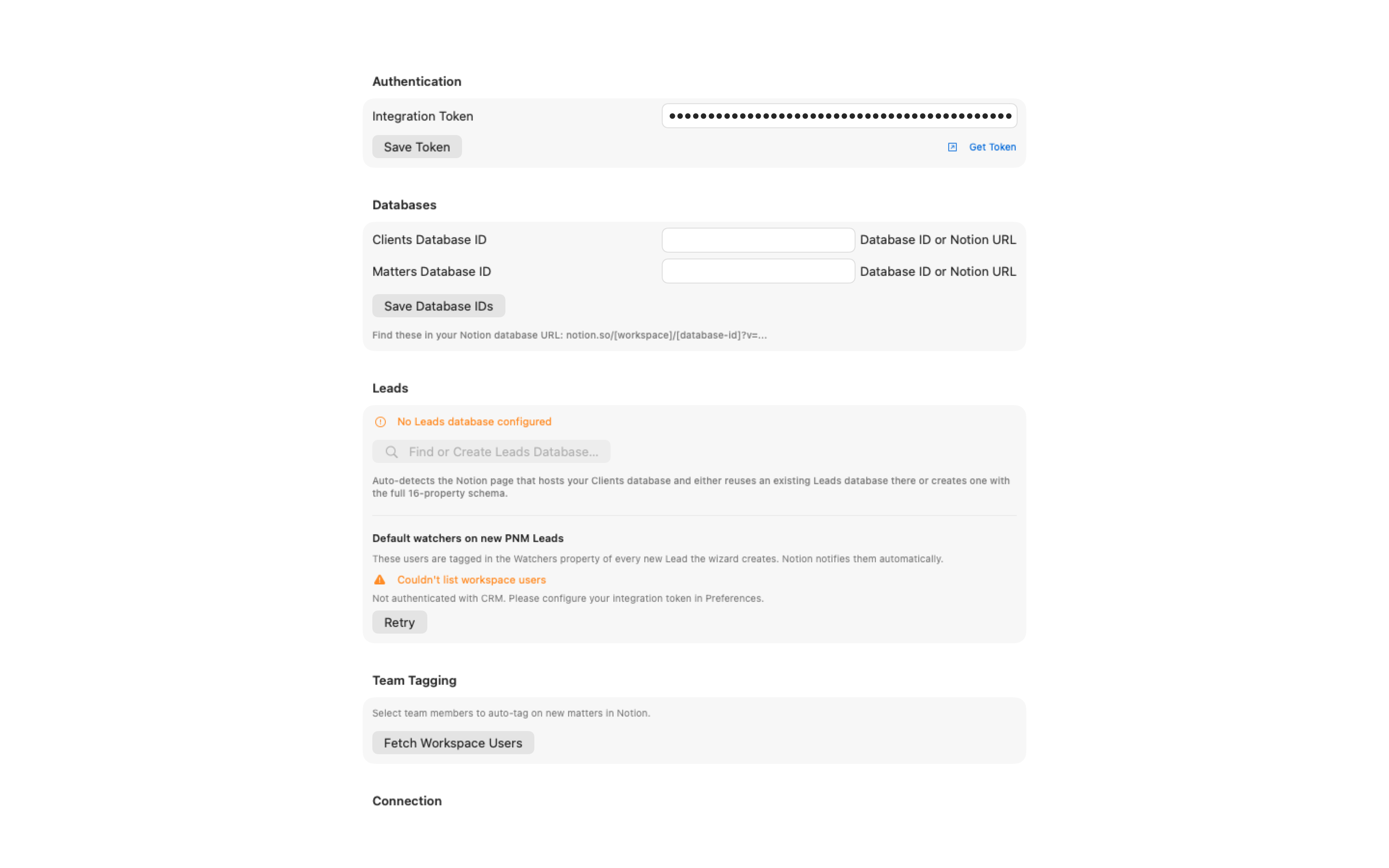
Open Settings (⌘,) → Notion. Paste your Integration Token and click Save Token — Certum Draft immediately checks the token with Notion, so the tick reads Saved — token works (or you get a clear rejection instead of finding out later). Enter both Database IDs; they save automatically a moment after you stop typing.
-
(Optional) Set up the Leads database
To capture phone-call enquiries as Leads, click Find or Create Leads Database… in the Leads section. Certum Draft detects the page hosting your Clients database, searches for an existing Leads database there, and either adopts it or creates a fresh one — only after you confirm. See Potential New Matters for the full Leads workflow.
Connection Diagnostics
Section titled “Connection Diagnostics”After configuring, click Test Connection in the Connection section. Four rows show:
| Check | What it Verifies |
|---|---|
| Authentication | The integration token is valid |
| Clients Database | The database exists and the integration can read it |
| Matters Database | The database exists and the integration can read it |
| Schema Validation | Expected property names are present |
A passing run shows record counts (e.g., “1,420 clients”).
Above the test, a Status line reports Notion’s health as the app sees it this session — answering, a rejected token, a refused request, a list cut short at Notion’s 1,000-row cap, notices that aren’t getting through — and lists any client update still waiting to reach Notion, with Retry and Discard. See Settings → Notion.
Behind the scenes, reads, queries and page updates retry on Notion’s 502/503/504 errors, timeouts and dropped connections, waiting as long as Notion’s Retry-After asks. Page creates, comments and block appends are never re-sent after an ambiguous failure, so a blip can’t make two of anything.
Database Schema
Section titled “Database Schema”Certum Draft reads from and writes to specific property names. The names below match the live O’Neill Solicitors workspace and are verified at compile time against the source code.
Clients Database (21 properties)
Section titled “Clients Database (21 properties)”| Property | Type | Notes |
|---|---|---|
| Client Full Name | Title | Format: SURNAME, Given Names |
| Phone | Phone | Mobile and landline combined with | separator |
| Address (Legacy) | Rich text | Combined address — legacy plain-text field |
| Postal Address (Legacy) | Rich text | |
| Client Address | Place | Google-Maps location property — handled separately |
| Client Postal Address | Place | |
| Unit | Rich text | Structured unit / level / suite / shop |
| Street | Rich text | Street address only |
| Suburb | Rich text | |
| State | Rich text | |
| Postcode | Rich text | |
| Country | Rich text | Stored only when non-AU |
| Address Verified | Checkbox | True when MapKit-verified or manually confirmed |
| Address Verified Source | Select | mapkit, manual, migration, or unknown |
| Address Verified At | Date | When verification was stamped |
| Address Verified Fingerprint | Rich text | Canonical hash (v1:<16-hex>) for drift detection |
| Related Matters | Relation | → Matters database |
| S/C Packet No | Rich text | Safe custody packet number |
| Deceased | Relation | For estate matters |
| Last Edited | Last edited time |
Matters Database (26 properties)
Section titled “Matters Database (26 properties)”| Property | Type | Notes |
|---|---|---|
| Description | Title | Matter name / Re: line |
| No. | Number | Matter number (only written when numeric) |
| Type | Multi-select | Matter type categories |
| Status | Select | Active, Completed, Closed, On Hold, Not started |
| Client | Relation | → Clients database |
| Property | Rich text | Property description for conveyancing matters |
| S/C Packet No | Rich text | Safe custody packet number |
| People | People | Person(s) with carriage |
| Date of Instructions | Rich text | Open date stored as text |
| Finalised | Select | Close-state marker (a select, not a date) |
| Shared Note | Rich text | Used for file reference; syncs bidirectionally with the matter workspace |
| Rod Note | Rich text | Free-form note field |
| Phone | Phone | |
| Deceased | Relation | |
| Created time | Created time | |
| Mel Date / Michael Date / Rod Date | Date | Per-practitioner date markers |
| Link to Certum | URL | certum://open?matter=000150 |
Leads Database (16 properties)
Section titled “Leads Database (16 properties)”Created by Find or Create Leads Database… in Settings → Notion → Leads, or adopted from an existing database in the same page. The schema is fixed; Certum Draft creates it with these properties:
| Property | Type | Notes |
|---|---|---|
| Name | Title | Lead name (caller name or matter description) |
| Stage | Select | new, contacted, quoted, instructed, declined |
| Source | Select | referral, repeat client, google or web, other |
| First contact channel | Select | phone, email, walk-in, web form, other |
| Practitioner with carriage | Rich text | |
| Next action by | Date | When to follow up |
| Contact | Relation | → Clients database (linked once client created) |
| Raw caller name | Rich text | The caller’s name as captured on first contact |
| Raw caller phone | Rich text | |
| Raw caller email | Rich text | |
| Likely matter type | Rich text | |
| Notes | Rich text | |
| Decline reason | Select | no response, client declined, conflict, out of scope, referred elsewhere, other |
| Linked matter | Relation | → Matters database (linked on conversion) |
| Conversion state | Select | not_converted, matter_creation_attempted, matter_created, lead_linked, needs_repair |
| Watchers | People | Firm members notified on every new Lead |
Tasks Database
Section titled “Tasks Database”The firm’s shared Tasks database is yours to create; Certum reads and writes it by property name and never alters its schema. Check Tasks Setup in Settings → Notion → Tasks says what’s missing. The required properties:
| Property | Type | Notes |
|---|---|---|
| Task | Title | The task’s title |
| Matter | Relation | → Matters database. A task filed to the firm’s Office page relates to that page |
| Assignee | People | Who holds the task |
| Due | Date | |
| Status | Status | Certum uses the first option in the To-do group as “open” and any option in the Complete group as done. An In review option enables Send back / Return for changes; a Cancelled option in the Complete group enables Cancel Task (closed, but not done — nobody is told it was completed) |
| Request ID | Rich text | Certum’s idempotency key, so a retried capture never makes a second task. Follow-up tasks begin certum-chase-, delegated checklist steps certum-step-, agent-created tasks certum-agent- |
Optional properties Certum uses when they exist:
| Property | Type | Notes |
|---|---|---|
| Assigned By | People | Who gave the task to its holder; changes on a send-back or return. Delegation, the Waiting on list and completion notices depend on it, so treat it as required in practice |
| Priority | Select | Urgent and the other priorities |
| Completed At | Date | A true completion stamp, set on tick and cleared on reopen; the Logbook groups by it |
| Requested By | People | The person who first created the task — unchanged by send-backs and reassignments, so the original asker stays visible |
| Repeat | Select | A recurring task’s rule, named as Certum names it: “Weekly on Friday”, “Fortnightly on Monday”, “Monthly on the 15th”, “Monthly on the last business day”, “Quarterly on 28 Jan/Apr/Jul/Oct”, “Yearly on 30 Jun”. Case, a missing “the”, bare ordinals and three-letter names are tolerated; anything else is shown as not understood and the task ticks as an ordinary one |
| Repeat Period | Date | The period a series is currently on; written by Certum when a repeating task is ticked |
The Office page is not a property — it’s an ordinary row of the Matters database, chosen once in Settings → Notion → Tasks, that Office tasks relate to.
A running Mac notices when the database gains the Cancelled option or any of the optional properties: the first task read that carries one re-reads the database’s layout. Certum also checks the database about once a minute for recently edited rows, so a change made in Notion or on another Mac appears within a minute or two whichever screen is showing.
How Data Flows
Section titled “How Data Flows”Client Name Handling
Section titled “Client Name Handling”Client surnames are stored uppercased in the Client Full Name title field. Format: SURNAME, Given Names (e.g., SCHRUTE, Dwight Kurt). When reading back from Notion, Certum Draft parses this title into separate surname and given_name fields for templates.
Notion owns a linked client’s name. Certum never sends a name change to Notion, and takes Notion’s name every time the matter opens, so the surname, given names and full name a linked client page supplies show read-only in the matter form with an Open in Notion link — correct the name there and it comes through on the next open. Parts Notion leaves empty stay editable in Certum.
Client Contact Details
Section titled “Client Contact Details”A linked client’s email, phone and address edited in Certum are pushed to the client page when the matter saves, and stay edited: on reopen, Notion’s value is taken only where the matter’s own value hasn’t changed since Certum last read it, so a local edit is never reverted by an older value. A pending update persists until Notion confirms it — retrying on its own when Notion or the network is down, and waiting for Retry or Discard in Settings → Notion when the token or a capability is the problem or a colleague has changed the page meanwhile.
Matter Number Handling
Section titled “Matter Number Handling”Matter numbers are stored in Notion’s No. field, which is a Number type. Certum Draft only writes when the matter number is purely numeric — non-numeric prefixes (custom identifiers, legacy formats) skip this field to avoid API errors.
When Creating a Matter
Section titled “When Creating a Matter”- Client selected from Notion — Name parsed into components; phone split on
|into mobile/landline; verified-address metadata round-tripped if present. - Matter created — New page created in the Matters database with:
- Description (matter name), Type (multi-select), Status set to “Active”
- Client relation linked
- Date of Instructions written as today’s date (text)
- People property populated with selected team members (if Team Tagging is configured)
- Link to Certum URL saved
- New client created (if not found in Notion) — Added to the Clients database with structured address fields and verification metadata.
- Shared Note initialised — Available for editing in the workspace.
If Notion is unreachable partway through, the app says so honestly instead of pretending the sync worked. A client that couldn’t be created in Notion is flagged Local only — not in CRM at the selection step, and a matter that couldn’t be linked shows Not linked to CRM on its Overview with a one-click Link to Notion retry.
Phone Number Handling
Section titled “Phone Number Handling”Certum Draft separates mobile and landline numbers in the matter form, but Notion has a single Phone field.
Writing to Notion:
- Both numbers combined with a pipe separator:
{mobile} | {landline} - If only one number exists, no pipe is added
Reading from Notion:
- If the value contains
|, it’s split: first part is mobile, second is landline - If no pipe, the single number goes where Australian numbering puts it:
04…,+61 4…or a nine-digit number starting with 4 (a mobile missing its 0) is a mobile; anything else is a landline - A Phone field holding more than a mobile and a landline — names, notes, extensions, several numbers — is never overwritten: a phone edit for that client stays in Certum and is logged
Address Verification Round-Trip
Section titled “Address Verification Round-Trip”When an address is confirmed in the Matter Workspace (via the MapKit-assisted AddressField), Certum Draft writes the structured components (Unit, Street, Suburb, State, Postcode, Country) plus the verification metadata (Address Verified checkbox, source, timestamp, fingerprint) to the Clients database. Re-opening the matter on a different machine preserves the “verified” state — the address won’t ask to be re-confirmed unless it materially changes.
Shared Note Sync
Section titled “Shared Note Sync”The Shared Note card on the matter’s Overview syncs both ways with Notion:
- From Notion: Loads when you open the matter, showing @mentions with highlighting. Edits made in Notion pull back into the app.
- To Notion: Your edits push to Notion automatically as you type (after a short pause), with proper Notion @mention formatting.
- @mentions: Typing
@Namecreates a real Notion mention — the person is notified. - Formatting: Bold, italic, underline and strikethrough from the buttons beside the note or the Format menu (⌘B, ⌘I, ⌘U) sync to Notion; bold, italic, underline, strikethrough, colours and links applied in Notion show in the app and survive an edit made there. Only inline formatting: a Notion property cannot hold headings, lists or checkboxes.
- Conflicts: If the note changed in Notion while you were editing (including a formatting-only change), a banner says so instead of overwriting anyone’s work. Choose Use Notion to take the Notion version, or Keep Mine to push your draft over it.
- A save that fails keeps your draft and retries — you won’t lose a note to a dropped connection.
Matter Checklist on the Notion Page
Section titled “Matter Checklist on the Notion Page”Open a matter once and its checklist (Sale, Purchase, or any pack that defines one) appears on the matter’s Notion page as real tickable to-dos — and ticks flow both ways: tick in Notion or in Certum interchangeably, and each side updates the other, with Notion ticks attributed to the person who made them. Certum’s matter file stays the audit-grade record; items marked N/A or hidden by the form are kept off the Notion page. The sync is a three-way merge that self-heals crashes, offline work, and two Macs opening the same matter: once both sides agree on a tick, that agreement is recorded as the new base, so a later untick in Notion is read as an untick rather than a stale copy, and sync runs and the one-step pushes after a tick happen one at a time, each saving only the steps it touched. The sync only writes while this Mac holds the matter’s editing lock.
A checklist step handed to a colleague with Delegate… is linked to a task in the Tasks database (Request ID certum-step-…); ticking either side ticks the other. See Editing Matter Details.
Lead Edits Always Reach Notion
Section titled “Lead Edits Always Reach Notion”When you edit a Lead in the inspector, the change always saves to Notion — if two Macs edit the same Lead at once, the last write wins. (An older version used to silently refuse saves it thought were stale; that check is gone, because it sometimes blocked perfectly good edits.) Rapid edits are coalesced so they don’t flood the API.
The app also writes only the columns your Leads database actually has. If your board is missing a column the app knows about, that field is skipped rather than making the whole save fail — and Certum Draft never creates or alters columns; your database schema stays yours to control.
Watchers on New Leads
Section titled “Watchers on New Leads”Settings → Notion → Leads lets you select firm members who should appear on every new Lead’s Watchers people property. Notion notifies them automatically. If a watcher is later removed from the workspace, Certum Draft silently drops them from new Leads and shows a one-shot dismissable banner so you know to refresh the selection.
Certum Link
Section titled “Certum Link”Each matter in Notion has a Link to Certum URL:
- Format:
certum://open?matter=000150 - Purpose: Click the URL to reopen the matter in Certum Draft from anywhere — Notion mobile, a Slack message, a calendar invite.
Dashboard Cards
Section titled “Dashboard Cards”When Notion is connected, parts of the home dashboard draw on your Notion data:
- Open Leads — Active Leads grouped by stage.
- Recent — matters you’ve opened recently on this Mac, joined by the matters most recently edited in the Notion workspace (anyone’s edits), so you see what colleagues have been working on. A matter that exists only in Notion shows as a register row; every linked row carries an ↗ to its Notion page. The Office page is left out.
- Today — your overdue and due-today tasks from the Tasks database, and what colleagues finished for you.
They refresh on dashboard re-entry and app activation through a throttle, never on every save. Client names are resolved from the local matter index rather than per-row API calls. See Dashboard.
Not Using Notion?
Section titled “Not Using Notion?”Notion integration is optional. Without it:
- Client details are entered manually for each matter.
- Client information is stored in the local matter metadata.
- All other features work exactly the same.
- Matters exist only on disk (no cloud sync).
- The dashboard’s Open Leads section and Today card are hidden, and the Tasks page is unavailable.
- The Leads capture flow is hidden.
Troubleshooting
Section titled “Troubleshooting””Test Connection” button is greyed out
Section titled “”Test Connection” button is greyed out”All three credentials must be set: Integration Token (click Save Token), plus the Clients and Matters Database IDs (both save automatically as you type).
”Not authenticated” Error
Section titled “”Not authenticated” Error”- Check the token is valid (regenerate at Notion Integrations if unsure)
- Verify the integration is shared with the database (Connections menu in Notion)
“Database not found” Error
Section titled ““Database not found” Error”- Verify the database ID is 32 characters (or paste the full URL — Certum Draft extracts the ID)
- Ensure the integration is shared with the database
- Check that you haven’t copied a view ID instead of the database ID
”Missing properties” Warning
Section titled “”Missing properties” Warning”- Schema validation found expected property names missing from your database
- For new workspaces, this can fire because you haven’t added the optional structured-address properties yet. The integration still works — only writes to missing fields are skipped.
- Add the missing property in Notion if you need it
Matter not appearing in Notion
Section titled “Matter not appearing in Notion”- Check the integration has Insert content capability
- Verify the Matters database is shared with the integration
- The matter may be filtered out of your default view — switch to “All matters” or remove the filter
Completion notices or team comments never arrive
Section titled “Completion notices or team comments never arrive”The notice to whoever assigned a task, and the comment that tags the team on a new matter, are Notion comments. They fail — while task reads and writes with the same token work — until the integration has the Insert comments capability. Turn it on at Notion Integrations; Settings → Notion shows the failure on its Status line until then.
A client’s name keeps reverting
Section titled “A client’s name keeps reverting”Notion owns a linked client’s name. Edit it on the client page in Notion and it comes through on the next open; see Client Name Handling.
@mentions not working
Section titled “@mentions not working”- The person must be a member of your Notion workspace
- The name in the Shared Note must match exactly (case-insensitive) as it appears in Notion
- The integration needs permission to mention users
Leads database setup says “Configured database isn’t reachable right now”
Section titled “Leads database setup says “Configured database isn’t reachable right now””A previously-configured Leads database ID exists but the integration can’t currently see it (transient network blip, or the database was unshared from the integration). Click Retry — Certum Draft preserves your configured ID until you explicitly adopt a different database or create a new one.
Rate Limit Errors
Section titled “Rate Limit Errors”- Notion permits roughly 3 requests per second
- Certum Draft throttles writes via a built-in rate limiter, and retries a 429 after the wait Notion’s Retry-After asks for
- Bursty operations (bulk client import) may still show “rate-limited — retrying” on the menu-bar item for a moment; nothing is lost