
Settings
Open Settings by pressing ⌘, or choosing Certum Draft → Settings… from the menu bar.
Settings is a standard macOS split view with ten panes in the sidebar: General, Matters, Reminders, Paths, Notion, Updates, Automation, Diagnostics, Firm Setup, Legal. Messages elsewhere in the app that send you here name the pane (“Settings → Notion”).
Every pane saves automatically as you make changes. A small Saved tick is pinned to the bottom of the window so you can see it no matter where you’re scrolled; if a save fails, the message shows there in orange instead.
General
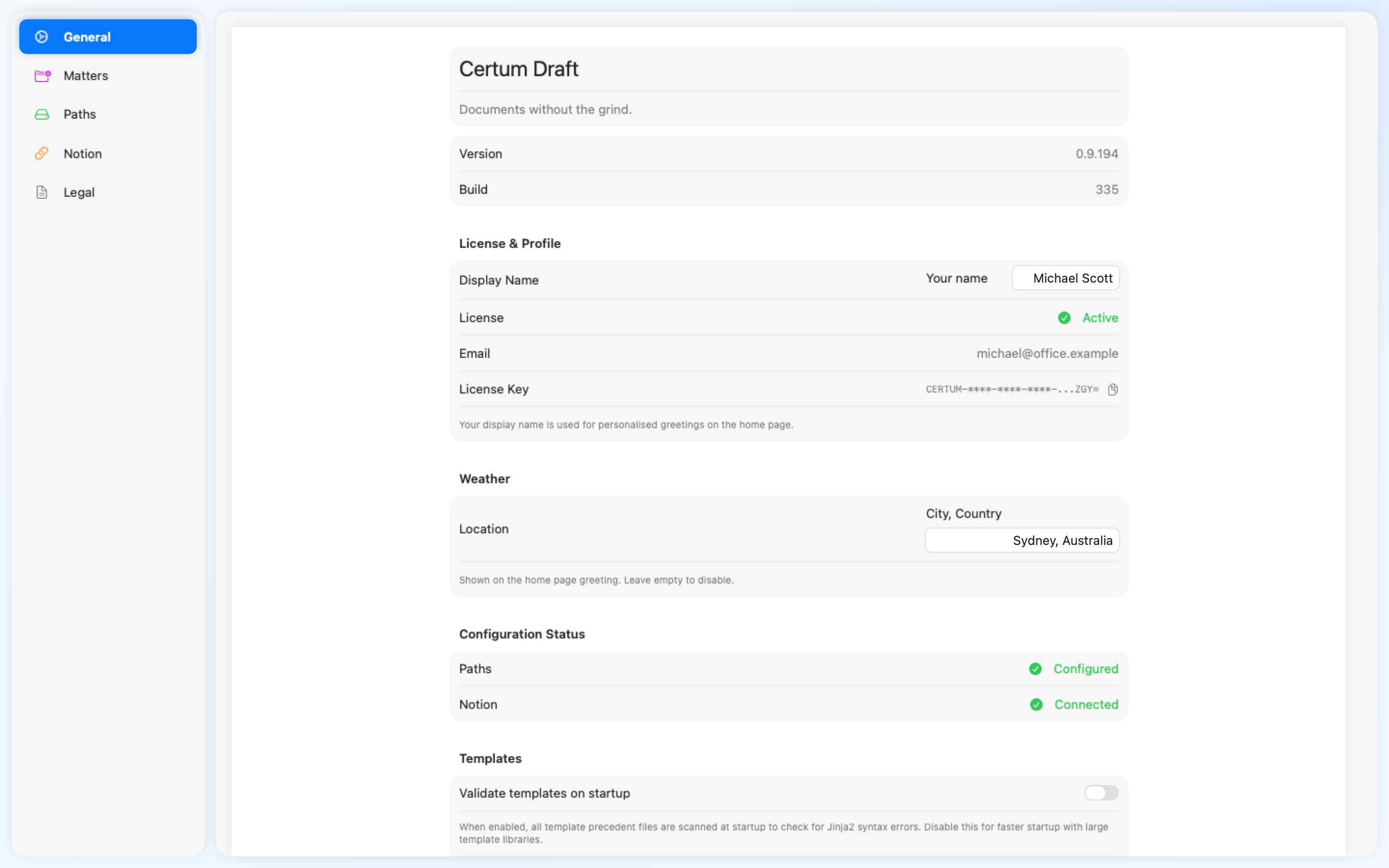
Section titled “General”The General pane covers everyday identity and health checks: configuration status, license and display name, text size, weather, and the app version.
Configuration Status
Section titled “Configuration Status”Read-only badges showing whether Paths and Notion are configured. If either says Not configured or Not connected, jump to the corresponding pane and complete the setup.
License & Profile
Section titled “License & Profile”- Display Name — your name as it appears in the home-page greeting (“Good morning, Rodney”). Saved automatically as you type.
- License — your activation state and registered email. If you’re licensed, the masked key is shown with a copy button so you can paste it onto a new machine without digging through emails.
To set up a second Mac, don’t retype anything — use a Setup Pack instead. To enter a different license on this Mac, run Reset All Settings in Firm Setup and re-activate on next launch.
Text Size
Section titled “Text Size”A slider from 85% to 130% (5% steps) that scales text across the whole app — dashboard, tables, forms, wizards, settings. The same scale is on the View menu: Increase Text Size (⌘=), Decrease (⌘−), Actual Size (⌘0). Printed and PDF output always renders at 100% — the setting changes what you read on screen, never what you file.
Command Palette
Section titled “Command Palette”Search Certum from anywhere with ⌃⇧K — the system-wide chord that shows the ⌘K palette over any app; Return opens the result in Certum. On by default, per-Mac, never in the pack; the caption says if another app already holds the chord. See Finding Matters.
Weather
Section titled “Weather”Optional. Set a city for the home-page greeting strip. Leave empty to hide weather entirely.
The app version and build number, at the bottom of the pane. Quote these if you report a problem.
Matters
Section titled “Matters”Matter Numbering
Section titled “Matter Numbering”Choose how matter numbers are generated:
| Format | Example | Notes |
|---|---|---|
| Year-Sequential | 2026-00123 | Year prefix plus a sequence |
| Pure-Sequential | 000150 | Simple incrementing number |
| Short Year-Sequential | 26-00123 | Two-digit year prefix |
Changing the format asks for confirmation first — existing matters keep their numbers, and only new matters use the new format.
For year-based formats, the Restart numbering each year toggle controls whether the first matter of a new year starts at 00001 (2027-00001) or the sequence keeps counting across years (2027-00124 after 2026-00123). It’s off by default, and it’s carried in the Setup Pack so the whole firm shares one convention.
The Next Number field is editable for every format (for year-based formats you set the sequence part only — the year prefix is added automatically). Click Auto-detect to scan your existing matter folders for the highest number and continue from there — useful when adopting Certum Draft on top of an existing matter library.
Folder Naming
Section titled “Folder Naming”How matter folders are named. Click a placeholder chip to insert it; the live preview underneath shows the resulting folder name.
| Placeholder | Description |
|---|---|
{matterNumber} | The generated matter number |
{surname} | Client surname |
{givenName} | Client given name |
{matterType} | Matter type (e.g., Conveyancing Purchase) |
{matterName} | The matter name / Re: line |
Example: {matterNumber} - {surname} {givenName} - {matterType} → 000150 - SCHRUTE Dwight - Conveyancing Purchase
Default Matter Folders
Section titled “Default Matter Folders”Subfolders created in each new matter. Add, remove, or reorder them; Reset to Defaults restores the factory list (after a confirmation).
Starter Files
Section titled “Starter Files”Files automatically copied from the template into each new matter. Each starter file has:
| Property | Description |
|---|---|
| Source path | Relative path within the template folder (e.g., Accounts/Office_Accounting.xlsx) |
| Copy to | Subfolder in the new matter where the file is placed |
Common uses: trust accounting workbooks, intake checklists, standard cover letters. Reset to Defaults restores the factory list (after a confirmation).
Finder Colour Labels
Section titled “Finder Colour Labels”Tag matter folders with a Finder colour based on the solicitor with carriage. When you create a matter and the “Practitioner with carriage” field matches one of these names, the folder is tagged with the corresponding Finder colour.
- Click Add Practitioner
- Enter the name as it will appear on matters (e.g., “Rodney”)
- Choose a colour: Gray, Green, Purple, Blue, Yellow, Red, or Orange
- The change saves automatically
Document Intake
Section titled “Document Intake”Read long documents with Private Cloud Compute — intended for a dropped document too long for the on-device model to read at once. Apple currently offers Private Cloud Compute only to apps distributed through the App Store, so the setting has no effect in Certum Draft and says so: every document is read on this Mac. See Document Intake.
Reminders
Section titled “Reminders”The macOS notifications Certum Draft sends, and the Apple Reminders mirror.
Date Reminders
Section titled “Date Reminders”- Send date reminders for Purchase and Sale matters — reminders for settlement, cooling-off expiry, finance approval, and funds-due dates. They fire at 09:00 local time on the day of, 1/3 days before, and 1/2/3 weeks before each date. Tapping a notification opens the matter directly.
- Institution follow-up reminders — on Estates matters, reminds you to chase an institution that hasn’t responded 14 days after your last contact. Logging a contact you sent, or marking a chaser sent, resets the clock; a “review on” date on the contact log replaces the fortnight. Only institutions awaiting a response or awaiting funds are chased, and one with a tracked follow-up task gets no separate reminder — the task’s own 9am reminder covers it. See Institutions.
- System permission — shows whether macOS Notifications is Authorized, Denied, or Not requested. If it’s Denied, an Open System Settings button takes you straight to the switch.
- Counters show how many reminders are currently scheduled and how many matters are muted on this device.
Apple Reminders
Section titled “Apple Reminders”Mirror My Tasks to a “Certum” Reminders list — your open tasks appear in Apple Reminders, and on your iPhone and Watch via iCloud. Tick a reminder anywhere and the real task completes in Notion (a tick on an institution follow-up task logs a chase instead). Edits made in Reminders don’t sync back; the list is a window, not a second copy. Repeating tasks are left out of the mirror, because a tick there can’t say which period it meant. Per-Mac opt-in — macOS asks for Reminders access the first time you switch it on. See Tasks.
Where Certum Draft looks for matters and templates. Each configured folder has a Show in Finder button, and a Not found warning appears if the folder no longer exists at the configured location (for example after a Dropbox reorganisation) — a dead path can’t sit there looking healthy.
Matters Root
Section titled “Matters Root”The folder where new matter folders are created. This can be a local folder, a network drive, or a cloud-synced folder (Dropbox, iCloud, OneDrive). Changing it asks for confirmation — nothing is moved — and search re-indexes straight away.
Finalised Matters
Section titled “Finalised Matters”Optional. Point this at the folder you move completed matters into. Once set, those matters stay searchable and openable and can still generate documents — they’re marked Finalised and hidden from the active matters list by default (a Show finalised toggle reveals them). Certum never moves anything for you; it simply also looks in that folder. Clear removes the setting.
Templates Root
Section titled “Templates Root”Where Certum Draft looks for template definitions. Each subfolder containing a matter.json becomes an available matter type.
Two toggles sit with the templates root they configure:
- Validate templates on startup — scans every precedent file for Jinja2 syntax errors at launch. Helpful for template authors; turn it off for a faster startup with a large library. You can re-run validation at any time from the Template Manager.
- Expand template folders by default — controls whether folders in the document picker start expanded or collapsed.
Notion
Section titled “Notion”The Notion pane configures the live CRM integration. See Notion Integration for the full guide; this section covers the controls.
Authentication
Section titled “Authentication”- Integration Token — your Notion API token. Stored in the macOS Keychain (not in the settings file). Click Get Token to open Notion’s integrations page in a browser.
- Save Token — writes the token to Keychain, then immediately checks it against Notion. The tick reads Saved — token works, or you get a clear rejection message instead of finding out later. If the token field has unsaved edits, a hint reminds you to save.
Databases
Section titled “Databases”- Clients Database ID — points at your Clients database.
- Matters Database ID — points at your Matters database.
Both fields accept either a 32-character database ID or a full Notion database URL — Certum Draft extracts the ID automatically. Both save automatically a moment after you stop typing; there’s no separate save button.
The controls that connect this Mac to the firm’s shared Tasks database (see Tasks):
- Tasks Database ID — the shared Notion Tasks database. Travels in the Setup Pack, so a provisioned Mac arrives connected.
- Office Page — the page in the Matters database where the firm files tasks that belong to no matter. Paste its link and click Set; Certum checks the page is in the Matters database and is not a matter’s own page, and never creates one. Firm-wide: it travels in the Setup Pack. Until it is set, nothing Office-related shows anywhere.
- I am — which workspace person this Mac’s task captures and ticks belong to. Deliberately per-Mac (it never travels in the pack); auto-suggested when your licence email uniquely matches a workspace person.
- Show the supervision line on this Mac — adds one amber line to this Mac’s dashboard Today card counting delegated tasks over a week late, tasks in review untouched for more than three business days, unassigned tasks, and active matters with no open task and no critical date. Off by default, per-Mac, never in the pack. See Dashboard.
- Capture a task from anywhere with ⌃⇧Space — the system-wide chord that shows the task composer over any app. On by default, per-Mac, never in the pack; the caption says if another app already holds the chord. See Tasks.
- Check Tasks Setup — validates the database schema and the integration’s access, and says exactly what’s missing if something is: the required properties, whether recurring tasks are available (the Repeat select and Repeat Period date), and whether completion notices are getting through — they are Notion comments, and fail until the integration has the Insert comments capability. The pane shows that last problem on its own line whenever a notice has failed.
Registers
Section titled “Registers”Registers Page — the Notion page the Transfer Duty and AML/CTF register databases live under (leave blank for the firm’s default). Each register has its own find-or-create row, like the Leads database below; see Compliance.
The Leads feature uses a third database. Click Find or Create Leads Database… and Certum Draft will:
- Detect the Notion page that hosts your Clients database
- Search for an existing Leads database there
- Either adopt the one it finds, or create a fresh one with the full 16-property schema (only after you confirm)
If multiple Leads databases exist in that page, you’re shown a list to pick from — Certum Draft never silently creates a duplicate.
Default watchers on new Leads
Section titled “Default watchers on new Leads”Select firm members who should be tagged on every new Lead’s Watchers people property. Notion notifies them automatically when a Lead lands. Selected users persist across sessions; if a watcher ever leaves the workspace, Certum Draft silently drops them from new Leads and shows a one-shot dismissable banner.
Team Tagging
Section titled “Team Tagging”Select team members to auto-tag on every new matter you create. When a matter is created:
- Selected users are added to the People property
- They’re @mentioned in a comment on the matter page
Click Fetch Workspace Users to load the picker. Refresh Users re-fetches; Clear All removes all selections.
Connection
Section titled “Connection”A Status line says whether Notion is answering (“Working — last reply from Notion at 10:42”) or what is wrong: a rejected token, a request Notion refused, a list cut short at Notion’s 1,000-row cap, completion notices or team comments that aren’t getting through. Under it, Client updates waiting to reach Notion lists any address or contact edit that hasn’t been confirmed by Notion yet — one retrying on its own, or one held because the token or a capability is the problem or a colleague changed the page meanwhile — each with Retry and Discard. The menu-bar item carries one line when something here is wrong.
The Test Connection button runs four checks:
| Check | What it verifies |
|---|---|
| Authentication | Your integration token is valid |
| Clients Database | The database exists and the integration can read it |
| Matters Database | The database exists and the integration can read it |
| Schema Validation | Expected properties are present |
Clear Notion Settings removes the integration token and database IDs from this Mac (with a confirmation). Your Notion pages are untouched — you can reconnect any time.
Updates
Section titled “Updates”Certum Draft updates itself automatically. This pane shows where things stand and lets you tune how updates arrive.
Current Version
Section titled “Current Version”The installed version and build, plus a status line: Up to date, Ready to restart when an update is downloaded, or Needs attention if something went wrong.
Automatic Updates
Section titled “Automatic Updates”- Check for updates automatically — the app checks in the background.
- Download updates automatically — updates download as they’re found, so installing is instant.
- Include beta updates — opt into pre-release builds.
Downloaded updates always wait for an explicit restart — nothing installs mid-matter. When you choose Restart to Update, Certum Draft first saves every open matter, and if a matter can’t be saved the update waits rather than dropping your edits.
When an update is downloaded and ready, a reminder pill appears in the toolbar. You can snooze the reminder for 24 hours; critical updates still show.
Schedule
Section titled “Schedule”When the app last checked, when it last succeeded, and when the next background check is due.
Automation
Section titled “Automation”The switches for the local automation API — how AI assistants and scripts connect to Certum Draft:
- Enable local automation API — persists across launches and starts the local socket. While it’s on, Horace’s silhouette shows in the menu bar and any process running as your user on this Mac can read matter data.
- Allow automation writes — session-scoped: resets when the app quits, so write access is a fresh decision each session. It covers proposals, renders, file notes, institutions, checklists, tasks, grants, Notion links and invoice lines; a bolt on the menu-bar glyph means it’s on. Every write is recorded in the audit log.
The pane also shows the socket path and connection status, lists the MCP bridges this session — each host’s certum-mcp version and when it was last seen, with a warning for an out-of-date copy, which can mark writes as safe to retry when they aren’t — and reveals the audit log that records every request. The full picture — what agents can do, the approval model, connecting Claude — is on Automation & AI Agents.
Diagnostics
Section titled “Diagnostics”Local logs and Apple system reports that help diagnose crashes, hangs, and update problems. Everything stays on this Mac — nothing is uploaded automatically.
Status
Section titled “Status”How many log files exist and how much space they use, how many system diagnostic and daily metric reports are retained, the updater’s status, and the date of the latest system report.
Support Bundle
Section titled “Support Bundle”Export Diagnostics bundles the recent logs and retained system reports into a single ZIP you choose a home for — that’s the file to send when you ask for help. Open Logs Folder reveals the raw logs in Finder.
Logs rotate automatically (10 MB each, five archives), and the system reports keep only the most recent ones, so diagnostics never fill your disk.
Firm Setup
Section titled “Firm Setup”Firm-provisioning actions live here, away from everyday toggles: the Setup Pack, onboarding, and the Danger Zone.
Setup Pack
Section titled “Setup Pack”One encrypted file sets up a colleague’s Mac. Export Setup Pack… writes a .certumsetup file carrying:
- Folder paths (Matters and Templates roots), stored so they work on any Mac
- The Notion connection (integration token, database IDs — the Tasks database and the Office page included — team tagging, and default Lead watchers)
- The firm’s license
- Firm-wide preferences: matter numbering (including the yearly-reset convention), folder naming, default folders and starter files, Finder colour labels, weather, and the template toggles
The file is sealed with a passphrase you choose (at least 8 characters). It’s safe to leave in the firm’s shared Dropbox — in fact the save dialog starts there, and a fresh install automatically offers any pack it finds in the firm’s Dropbox (top level or one folder down). Share the passphrase separately from the file — telling a colleague in person is perfect.
On the new Mac, the welcome screen and the license gate both offer Import Setup Pack… — one passphrase and the install is configured, license included. A wrong passphrase or a tampered file fails loudly and imports nothing, so a Mac can never end up half-configured.
Import… on this pane loads a Setup Pack (or a settings file exported by an older version) onto this Mac. If the pack lives in Dropbox as an online-only placeholder, the import waits for the download and tells you if it’s still fetching — right-click the file in Finder and choose Make Available Offline if it’s slow.
Firm settings that keep themselves current
Section titled “Firm settings that keep themselves current”Once a Mac has imported the firm’s pack, it keeps itself up to date on its own: the app watches the pack file in the firm’s shared Dropbox and silently applies any new version — machine-local choices (folder locations, the per-Mac “I am” identity) are never touched. A switch on this pane turns the auto-update off.
The other half runs on ONE opted-in Mac (the settings authority): when a firm-level setting changes there, it re-exports the pack automatically. Together the flow for a firm-wide setting change is: change it on the authority Mac — every other Mac follows, no manual steps anywhere. A rotated passphrase degrades gracefully to a “run Import… once” notice rather than silent staleness.
Onboarding
Section titled “Onboarding”Show Onboarding resets the onboarding flag so the first-run setup wizard appears on next launch. Useful if you want to reconfigure folder locations or walk a new staff member through setup on their own profile.
Danger Zone
Section titled “Danger Zone”Reset All Settings — asks for confirmation, then clears the licence, terms acceptance, paths, and every preference. You’ll need to re-enter your license key (or import a Setup Pack), and the app shows first-run onboarding on next launch. A Quit Certum Draft button appears with the success message so you’re not left hunting for it.
Read-only pane. View the Terms of Use you accepted during setup and the Open Source Licenses for third-party components Certum Draft uses.
Matter Auto-Save and Locking
Section titled “Matter Auto-Save and Locking”These behaviours are not user-configurable — they’re documented here because users often ask.
Auto-Save
Section titled “Auto-Save”Matter data saves automatically 2.5 seconds after your last edit. The footer shows a dot while a save is pending and “Saved at” once it lands. A manual ⌘S (also on the Matter menu) flushes immediately. Closing a matter waits for any pending save to finish, and if it can’t save you’re asked whether to keep editing or discard — edits are never silently dropped on close.
Saves are checked against the file on disk. If another window, another Mac or the automation API changed the matter first, the save is refused and a This Matter Changed Elsewhere banner offers Reload and Re-apply My N Changes (load the newer version, put your unsaved field edits back on top, save) and Copy My Unsaved Changes; see Troubleshooting.
Matter Locking
Section titled “Matter Locking”When you open a matter on a shared drive, Certum Draft creates a hidden .editing-*.lock file to prevent simultaneous editing. If another user already holds the lock:
- The matter opens in read-only mode with a banner indicating who holds it and how old the lock is.
- A lock is soft-stale after 5 minutes (UI flags it as “may be stale” — laptop sleep, lunch break).
- A lock is hard-stale after 15 minutes and can be automatically cleaned up.
- Closing a matter releases the lock immediately.
- Certum Draft heartbeats the lock every 60 seconds so a long editing session never trips the stale threshold.
- Take Over (after a confirmation) forcibly acquires the lock when you need to edit — and the other Mac is told, so its workspace switches to read-only instead of silently losing edits.
Institution Catalog
Section titled “Institution Catalog”Certum Draft ships with a bundled catalogue of 1,552 Australian financial and aged-care institutions (banks, credit unions, building societies, insurers, super funds, aged-care providers), with brand logos for the common ones. Loaded from disk at launch; no internet required. Used to populate mortgagee, lender, and institution pickers throughout the app. Entries that have merged (Active Super and Local Government Super into Vision Super, for example) resolve to the surviving institution, and matters holding a retired entry follow the redirect.
Template Cache
Section titled “Template Cache”Templates are cached in ~/Library/Application Support/Certum Draft/ so they remain available when the source folder is temporarily unreachable (Dropbox Smart Sync eviction, network drive offline). The cache refreshes whenever the templates folder is accessible.