
Creating a New Matter
When you take on a new client or matter, the first step is creating a matter in Certum Draft. This sets up the folder structure, records client details, and optionally syncs with Notion.
Starting the New Matter Wizard
Section titled “Starting the New Matter Wizard”There are two ways to create a new matter:
- Keyboard shortcut: Press ⌘ + N
- Menu: Choose File → New Matter…
You can also start a matter from a Lead: open the Lead in the inspector and click Convert to Matter. See Potential New Matters for the lead-to-matter flow. When the wizard opens from a Lead, the matter type, person acting and matter name are pre-filled from the Lead — you still pick the client explicitly.
Step 1: Select or Create a Client
Section titled “Step 1: Select or Create a Client”The wizard opens at the client step. You can:
- Pick an existing client — the search field is focused and searches as you type (no need to press Return). If Notion is connected, this searches your Notion clients database.
- Add a new client — click Create New Client to enter details manually.
- Add multiple clients — after selecting or creating one client, click Add Another Client to add more parties (couples, co-purchasers, co-executors).
A client that exists only on your Mac (its earlier sync to Notion failed) is flagged “Local only — not in CRM” right there in the list, with a banner explaining — so you know the firm’s register doesn’t have them yet before you build a matter on them.
When you have all the clients you need, click Next.
Step 2: Choose Matter Type
Section titled “Step 2: Choose Matter Type”The next screen shows available matter types (also called templates). Each type has:
- A specific set of fields to collect
- A predefined folder structure
- Associated document templates
Common matter types:
- Estates (deceased estates, probate)
- Conveyancing (purchase / sale of land)
- Wills, POAs & Enduring Guardians
- Lease (tenant or landlord)
- Advice (general legal advice)
Select the appropriate type and click Next.
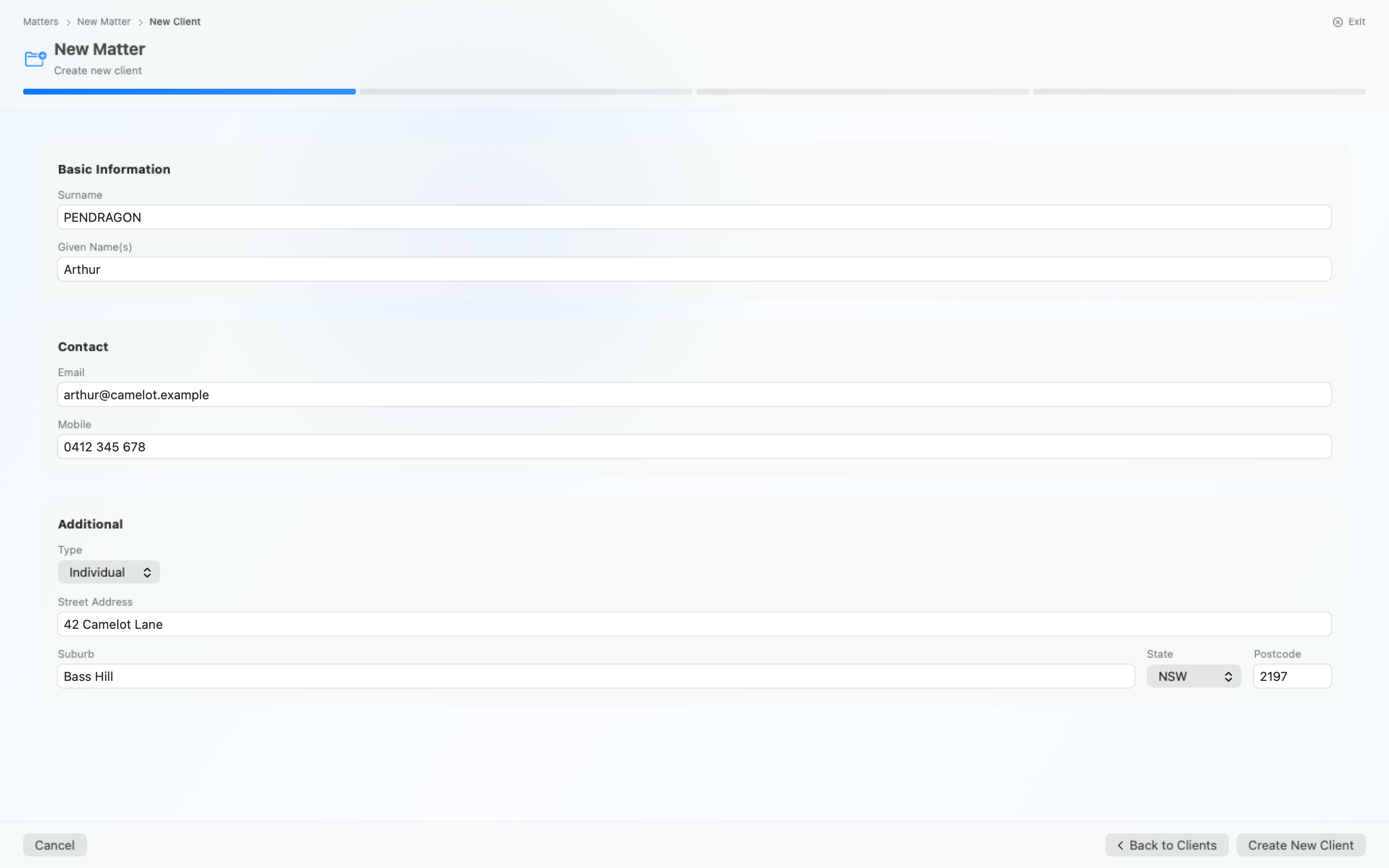
Client Details (Create New Client)
Section titled “Client Details (Create New Client)”If you clicked Create New Client, first pick the client type — Individual, Company, Trust or Other — then enter the details. The form adapts: individuals get Title, Given Names and Surname; companies and trusts get a single Company Name or Trust Name field.
- Title (Mr, Mrs, Ms, Dr, etc.) — individuals only
- Given Names and Surname — individuals only
- Address (street, suburb, state, postcode)
- Contact details (mobile, landline, email)
Email, phone and postcode formats are checked as you leave each field — a warning appears if something looks off, but you can still proceed (a warning, never a roadblock).
Address Autocomplete
Section titled “Address Autocomplete”The street-address field offers MapKit suggestions as you type. Picking a suggestion fills the suburb, state and postcode for you. You can still edit any field by hand if MapKit’s match is approximate.
Multiple Clients
Section titled “Multiple Clients”For matters involving couples or multiple parties (co-purchasers, co-executors):
- Enter the first client’s details and click Add to matter
- Back on the client step, click Add Another Client
- Enter the next client’s details
- Repeat for additional parties
Folder Naming:
Multi-client matters automatically include both names in the folder:
000108 - SCHRUTE Dwight & SCHRUTE Angela - Sale of Schrute Farms
Contact Numbers
Section titled “Contact Numbers”Certum Draft collects mobile and landline numbers separately:
| Field | Use For |
|---|---|
| Mobile | Mobile phone number |
| Landline | Home or work phone |
Step 3: Matter Details
Section titled “Step 3: Matter Details”These fields are specific to the matter type you selected. Above the form, a live Folder Preview shows the exact folder name Certum Draft will create, so there are no surprises.
Dropping documents (Estates)
Section titled “Dropping documents (Estates)”On estate matters, a drop well sits at the top of this step: drag a death certificate, will, ID or statement onto it (PDF or photo) and Certum Draft holds it while the matter is being created. Choose Open Matter on the completion screen and the documents are handed straight to the new matter’s intake queue — you’ll review every proposed value before anything is saved. Close the wizard without opening the matter and the held documents are discarded.
For Estates
Section titled “For Estates”| Field | Description |
|---|---|
| Deceased Name | Full name of the deceased |
| Date of Death | When the deceased passed away |
| Matter Description | Brief description (used in folder name) |
| Person Acting | Solicitor with carriage |
For Conveyancing
Section titled “For Conveyancing”| Field | Description |
|---|---|
| Property Address | Address of the property |
| Purchase/Sale Price | Transaction amount |
| Settlement Date | Expected settlement |
| Other Party | Name of vendor/purchaser |
For Wills
Section titled “For Wills”| Field | Description |
|---|---|
| Matter Type | Will, POA, EG, or combination |
| Person Acting | Solicitor with carriage |
Shared Note (Optional)
Section titled “Shared Note (Optional)”If Notion integration is configured, a Shared Note card on the same step takes an initial note for the matter’s Notion page:
- Visible to all team members in Notion
- Syncs both ways with the Matter Workspace
- Supports @mentions for notifications
Create
Section titled “Create”When the Folder Preview reads the way you want, click Create Matter. The matter number is minted at that moment from the folders already in your Matters and Finalised folders.
What Gets Created
Section titled “What Gets Created”When you create a matter, Certum Draft:
- Creates a folder with the matter number and name
- Sets up subfolders based on the matter type
- Creates a .certum file for quick access from Finder
- Saves a matter file containing all details
- Copies starter files if configured
- Creates in Notion (if configured):
- New matter page linked to client
- New client page (if client doesn’t exist)
- Team members tagged
- Certum link saved to matter page
Example Folder Structure
Section titled “Example Folder Structure”000108 - SCHRUTE Dwight - Estate of Mose Schrute/├── 000108.certum ← Double-click to open in Certum Draft├── 000108-matter.json ← Matter data├── Correspondence/│ ├── Incoming/│ └── Outgoing/├── Working Documents/├── Accounts/│ └── Office_Accounting.xlsx└── Safe Custody/Finder Colour Labels
Section titled “Finder Colour Labels”If your administrator has configured colour labels, the folder is automatically tagged:
- Based on the “Person Acting” field
- Visible in Finder with the assigned colour
- Configured in Settings → Matters → Finder Colour Labels
Next Steps
Section titled “Next Steps”After creating a matter, you can:
- Open Matter — Opens the Matter Workspace for this matter
- Open in Finder — Reveals the folder in Finder
- Generate documents using the client details
- Edit matter details in the Matter Workspace
Guided Interview
Section titled “Guided Interview”When you open a newly created matter, Certum Draft detects that the form is mostly empty and offers a guided interview mode. This presents one form block at a time from the first workflow stage, with a progress bar and Back/Next navigation.
- Skip to full form — click “Skip to full form” at any time to go straight to the tabbed workspace
- Complete — when you reach the last step, click “Complete” to land on the Details tab with all your data saved
- Auto-save — your answers are saved as you go, just like the regular form
The interview is ideal for standardising intake across your practice — everyone answers the same questions in the same order.
Quick Entry Mode
Section titled “Quick Entry Mode”If you only need the essential fields right now, the Matter Workspace has a Quick Entry toggle (shown above the Details form when the matter type defines quick-entry fields — or press ⇧ + ⌘ + E). With Quick Entry on, only the essentials are visible, with a “N of M fields” cue so you know what’s hidden. You can leave the wizard’s Matter Details step lightly filled, create the matter, then finish data entry incrementally in the Workspace.
Troubleshooting
Section titled “Troubleshooting””Matter number … is already in use by another matter”
Section titled “”Matter number … is already in use by another matter””The next number is worked out from the matter folders already in the Matters folder and the Finalised folder, plus the firm’s shared counter. If a folder with that number already exists under any name — most often one minted moments earlier on a colleague’s Mac that Dropbox hasn’t finished syncing — Certum Draft refuses to create the matter rather than mint a duplicate file number. Wait for Dropbox to finish syncing and try again.
”Failed to create in Notion”
Section titled “”Failed to create in Notion””Notion creation is non-blocking — the local matter is still created. Check:
- Internet connection
- Notion integration token validity
- Database permissions
Folder not appearing in expected location
Section titled “Folder not appearing in expected location”Check the Matters folder setting in Settings → Paths. If you used “New Matter Here” from Finder, the matter is created in the selected folder instead.