
Document Intake
Estates work arrives as paper: a death certificate in the post, a photographed will, a bank statement emailed as a PDF. Document intake reads those documents for you. Drag a PDF or a photo onto an Estates matter and Certum works out what the document is, reads the relevant details off it, and proposes them as matter fields — which you check, one by one, before anything is saved.
Everything happens on your Mac. The scan is read with Apple’s on-device OCR, and the details are extracted by Apple’s on-device AI model. No document, and no data from it, ever leaves the Mac — there is no cloud service in the loop.
Long documents are sampled to fit the model: the text sent to it is sized to the model’s real context, keeping the first and last pages, so a will’s residuary clause in the middle pages is read far more often than it used to be (statements get up to about 13,000 characters). The review sheet says where each document was read and whether all of it was, including when only the first twelve pages of a long scan were read.
What it can read
Section titled “What it can read”Nine document types, as PDF or photo (JPEG, HEIC or PNG):
- Death certificate
- Will (including multi-page wills — the last page is read too)
- Driver licence
- Passport
- Bank statement
- Superannuation statement
- Share statement
- Insurance statement
- Title search
Photos are read layout-aware, so certificates with tables and two-column layouts come through correctly.
Starting an intake
Section titled “Starting an intake”There are three ways in:
- Drag and drop — drop one or more PDFs/photos anywhere on the open matter window. Several documents at once queue up and are reviewed one at a time.
- The More menu — in the matter workspace, choose ⋯ (More) → Read Document… and pick the file.
- The New Matter wizard — drop documents on the wizard while you’re creating the matter; when you choose Open Matter at the end, they’re handed straight to the new matter’s intake queue.
The first time you open an Estates matter, a card on the Overview explains the feature; dismiss it once and it stays gone.
The review sheet
Section titled “The review sheet”After a short read, the review sheet opens. Nothing has been saved yet — the sheet’s own rule is printed at the top: “Review every value — nothing is saved until you apply.”
The document preview sits on the left; the proposed values on the right. Every value shows as a Current → Proposed row, so you can see exactly what the matter already holds and what the document would put there. Dates display as dd/mm/yyyy.
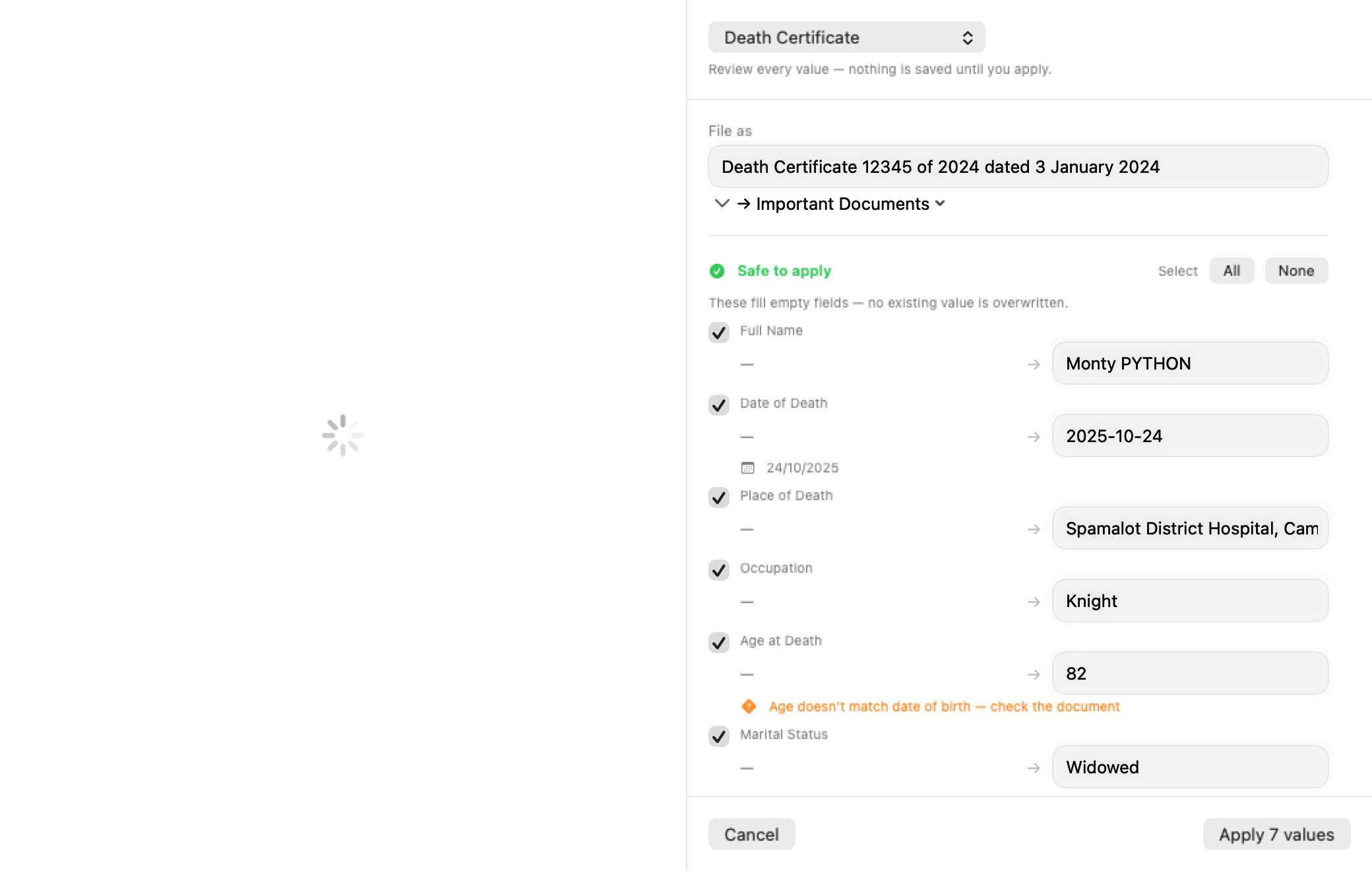
Proposals arrive in two groups:
- Safe to apply — values that fill empty fields. Nothing is overwritten. Use the All / None buttons to tick the group, or click a row’s label to toggle it.
- Needs review — replaces existing values — the document disagrees with something already on the matter. These start unticked: tick a row only if the document should win. When you apply with any of these ticked, Certum asks one confirmation listing exactly what will change.
Some rows carry a caution marker where the document’s own details cross-check imperfectly — an age that doesn’t quite match the dates, a registration number in an unexpected format. Treat those as prompts to look at the scan, not as errors.
If Certum guessed the document type wrong, use the document-type picker at the top and Re-classify — it re-reads the file as the new type (replacing the values it had proposed, after a confirmation).
Institution records from statements
Section titled “Institution records from statements”Bank, super, share and insurance statements propose an institution record alongside the form fields: the institution’s name and the account, member or policy number read from the statement. If the matter already has that institution, Certum proposes adding the account to the existing record instead of creating a duplicate. These feed the institution-notification workflow — see Institution Notifications.
Filing the document
Section titled “Filing the document”Under the filename, the File as line says where the document will be filed — Important Documents or Correspondence — with Certum’s proposal preselected. Click it to change the destination. Filing never overwrites an existing file, and death certificates are filed under a proper name, like Death Certificate 12345 of 2024 dated 3 January 2024.pdf.
Applying, skipping, stopping
Section titled “Applying, skipping, stopping”The primary button adapts to what you’ve ticked:
- Apply N values — save the ticked values, file the document, and record any institution proposal.
- File Only — when nothing is ticked. The document is filed and the matter is left unchanged.
- Skip — leave this document alone and move to the next one in the queue.
- Stop Reviewing — end the whole run; remaining documents are left untouched.
After an apply, a confirmation flash appears with an Undo button. Undo restores every overwritten value (and removes an added institution row) — useful the moment you realise the certified copy was the wrong John’s. The filing itself is deliberately not reversed; delete the filed copy in Finder if you need to.
When a document can’t be read
Section titled “When a document can’t be read”If the scan is illegible or the file is damaged, Certum doesn’t just flash an error — it offers to file the document to Correspondence as-is, so the paper trail is preserved even when the values aren’t. If the filing copy itself fails, you’re told that honestly rather than shown a false success.
The same applies when the model, rather than the scan, is the problem. The message says which it is in plain words — the document is too long for the model to read, the model declined to read it, it isn’t in a language the model reads, the model is busy (try again in a minute), or Apple Intelligence isn’t ready yet — and each offers the file-as-is option.
If the matter is open read-only (another Mac is editing it), Read Document… is disabled along with the rest of the workspace.
Related
Section titled “Related”- Institution Notifications — what happens to institution records after intake proposes them
- Editing Matter Details — the matter workspace documents are dropped onto
- Creating a New Matter — dropping documents on the New Matter wizard